
Oct 28, 2026
Indigo 2.7 lets you earn more flexibly while keeping the overview: prices by time of day and season, bank transfer as a payment method, extras after booking, and every window telling you beforehand what will happen. Here are the highlights at a glance, with each new feature in detail below.
At a glance
Prices & money: Price rules by time, day and season, bank transfer at checkout, refunds where nothing gets lost and vouchers to give as gifts.
Guests & booking page: Extras after booking, emails the way your guest sees them, images cropped the way you want and more steps reported to Google and Meta.
Day to day: Several bookings at once, “What happens next” in every window, documents in the side window and your own calendar in the Bookingbird calendar.
Under “Price”, your booking option now reads like an invoice: the base price on top, every price rule below in the order it is applied, and an example of what your guest pays. You add a new rule in two steps, such as “from 17:00, €5 more”, even across midnight, on certain days or in a season that comes back every year. For a time of day you choose whether the rule applies to the whole booking or only to the hours in that time.
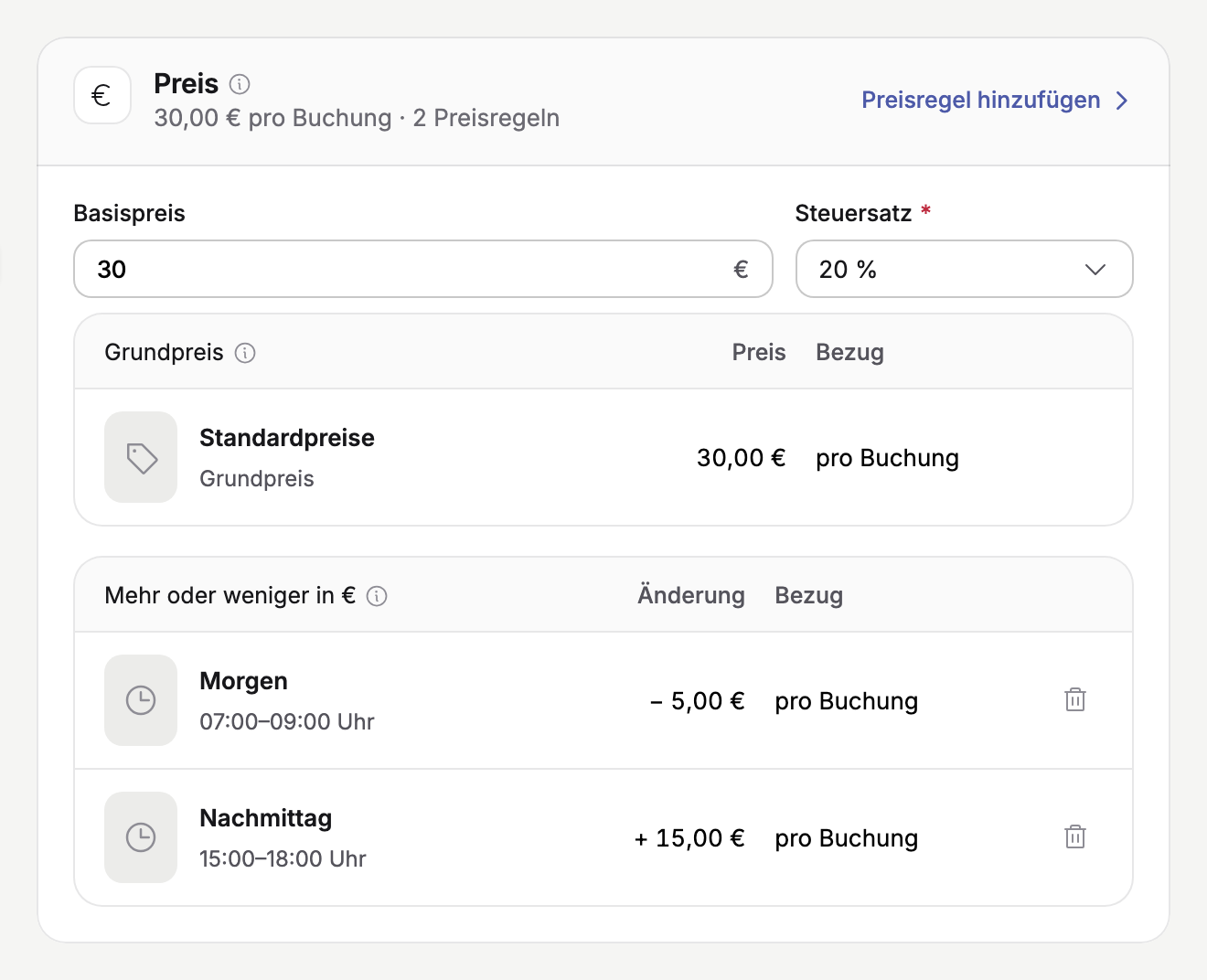
Where: Catalog → Booking Options → booking option → Edit → Price → Add price rule
You can now offer your customers “Bank transfer” at checkout instead of having them fall back on “Pay on site”. The confirmation email and the invoice show the IBAN, account holder, payment reference and due date. When the money arrives, you record the payment on the invoice, with “Bank transfer” already selected.
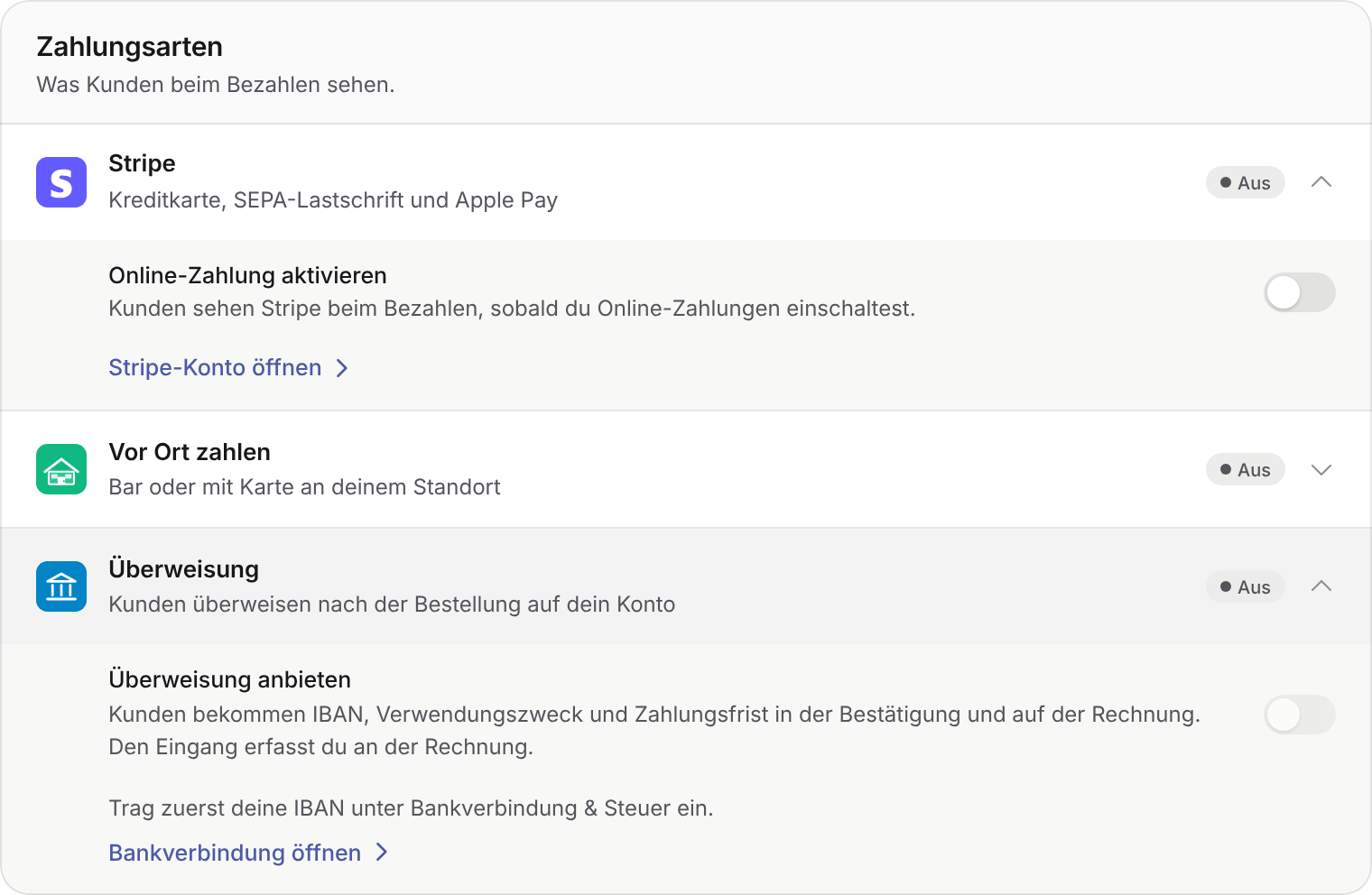
Where: Settings → Project → Payments → Payment methods → Bank transfer
When you cancel yourself, the window starts with the proposal you chose for your project: refund everything, follow your cancellation terms, or ask every time. If you like, the money goes back as a voucher, for example “48 tickets go back as a voucher”. If a refund fails, the order shows “Refund open” in red with the amount and “Refund again”, and your guest sees that it is still open, too.
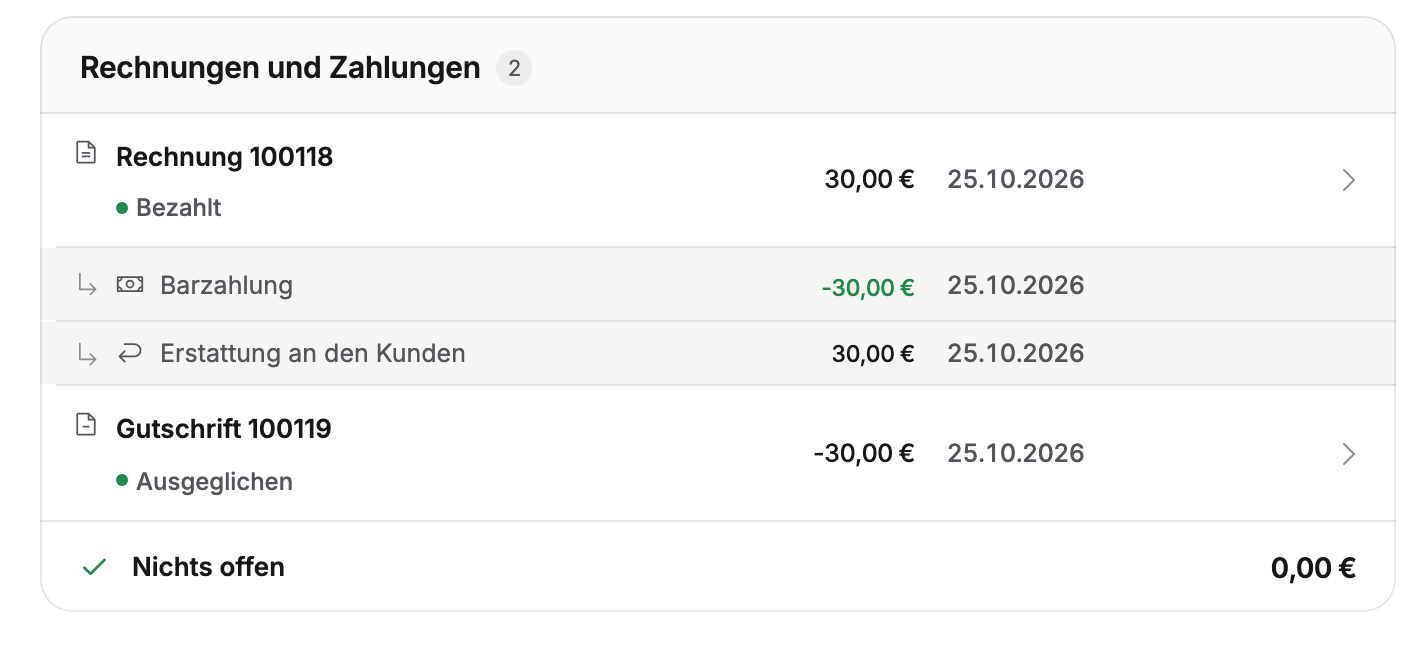
Where: Settings → Booking → Cancellation · Booking → ⋯ → Cancel
Anyone buying gift vouchers can give each one a name and a greeting and have it sent straight to the person it's for, with an email address, date and time. The buyer still gets all codes right away; each recipient gets only their own at the chosen time. If you refund such an order, you decide whether the voucher is blocked or stays valid.
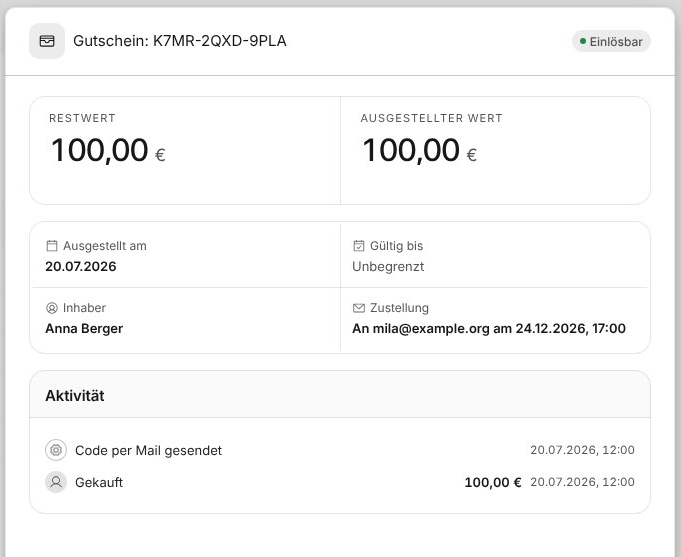
Where: Catalog → Articles → your voucher → Variants and prices → Value voucher
Turn on “Also possible after booking” for a collection and choose how long orders are open, for example until 24 hours before the start. Until then your guest adds extras on their booking page and sees everything they added there; a ready-made reminder from the template sends them the link a day before the deadline. When you cancel the booking, the window includes the extras, e.g. “Total back €32.00”.
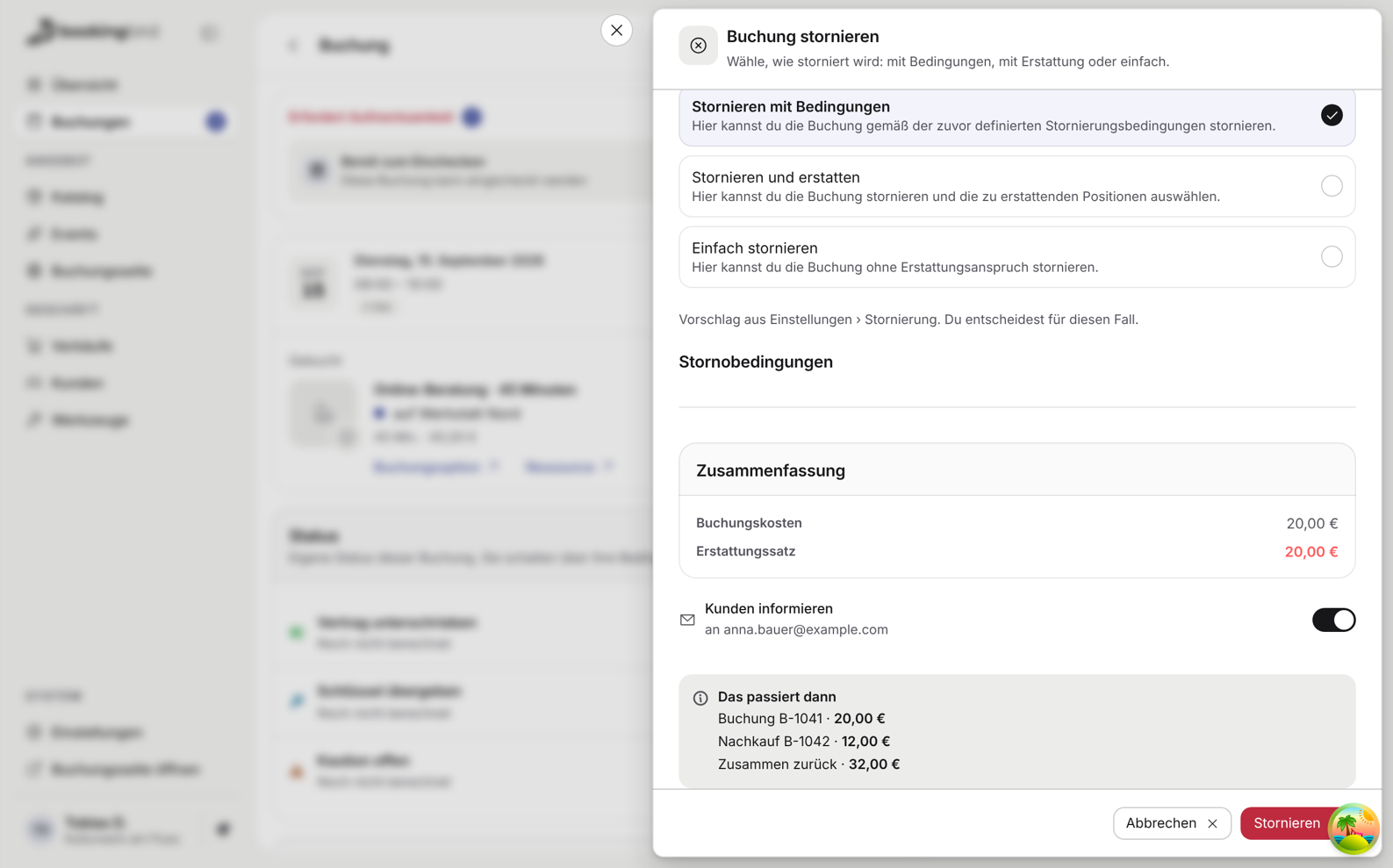
Where: Catalog → Booking Options → booking option → Flow → Open → Collection · Tools → Workflows → ⋯ → From template
The email editor now shows your email at full width with an inbox header above it, with sender and subject, just as your guest sees it. “Send test email” sits right above the preview. You can now also write the cancellation, ticket reminder and ticket delivery emails in your own words.
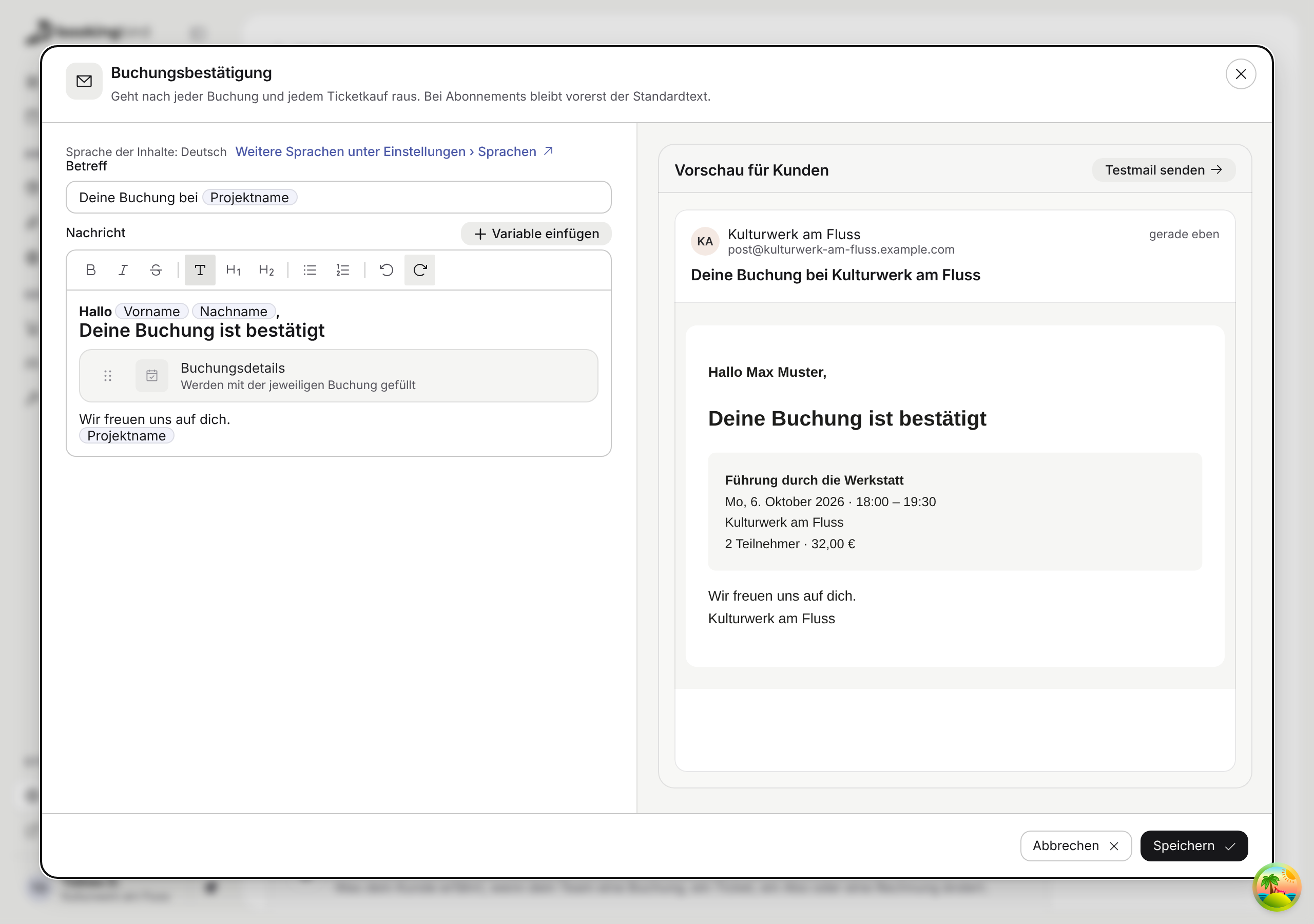
Where: Settings → Booking → Messages to customers
Your images are no longer simply cropped in the middle on the booking page. Under “Adjust image” you pick the crop and focus point for each format, whether tile, detail page or featured, and see where the image is used and whether it is sharp there. Documents such as a price list as PDF sit in a list of their own instead of between the photos.
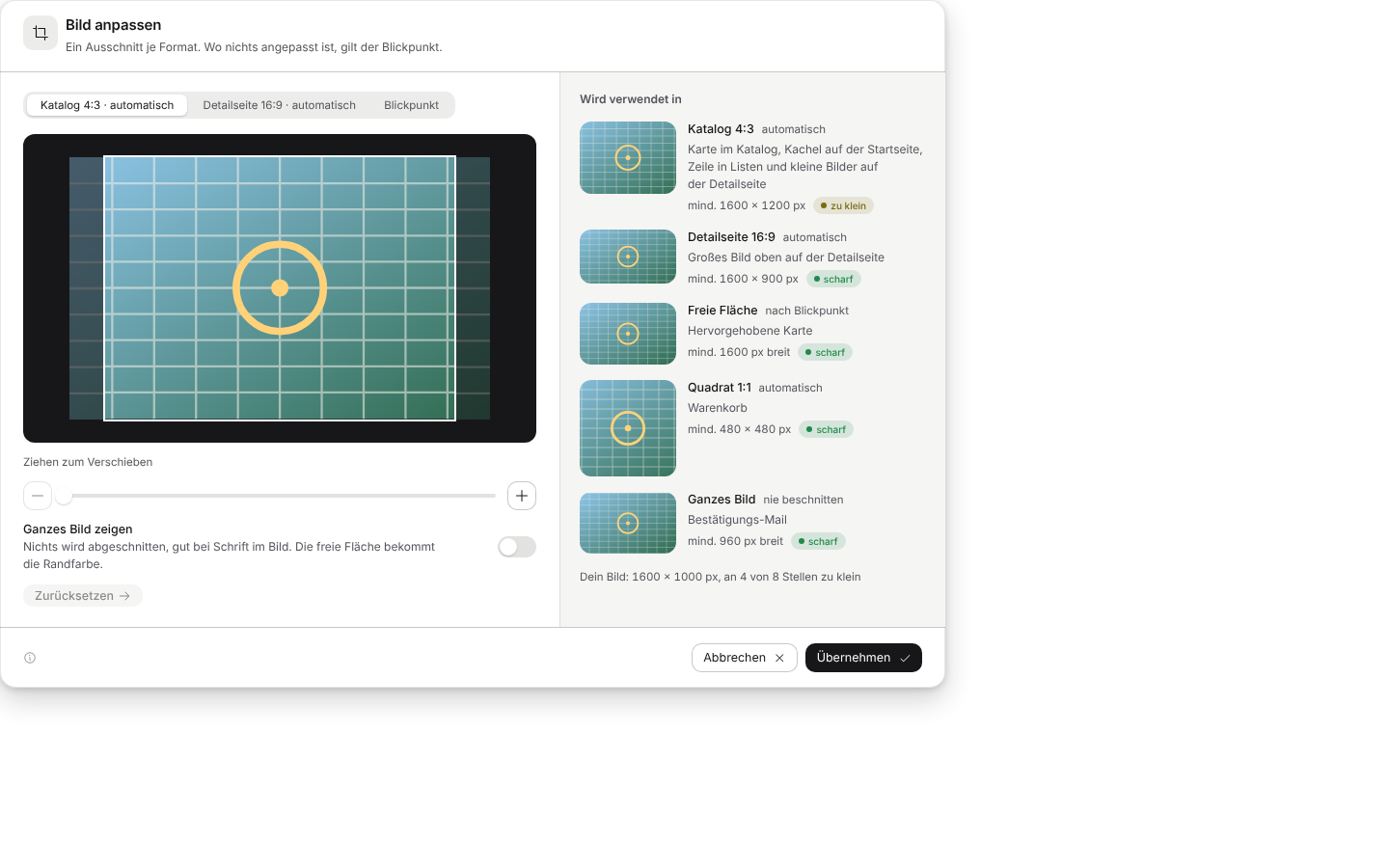
Where: Catalog → Booking Options → booking option → Edit → General → Images → ⋯ → Adjust image
Your booking page now also tells Google and Meta when a guest views an offer, adds something to the cart or picks a payment method, not just checkout and purchase. You switch each step on under “What gets reported”. As before, only once the guest has agreed, and exactly once per action.
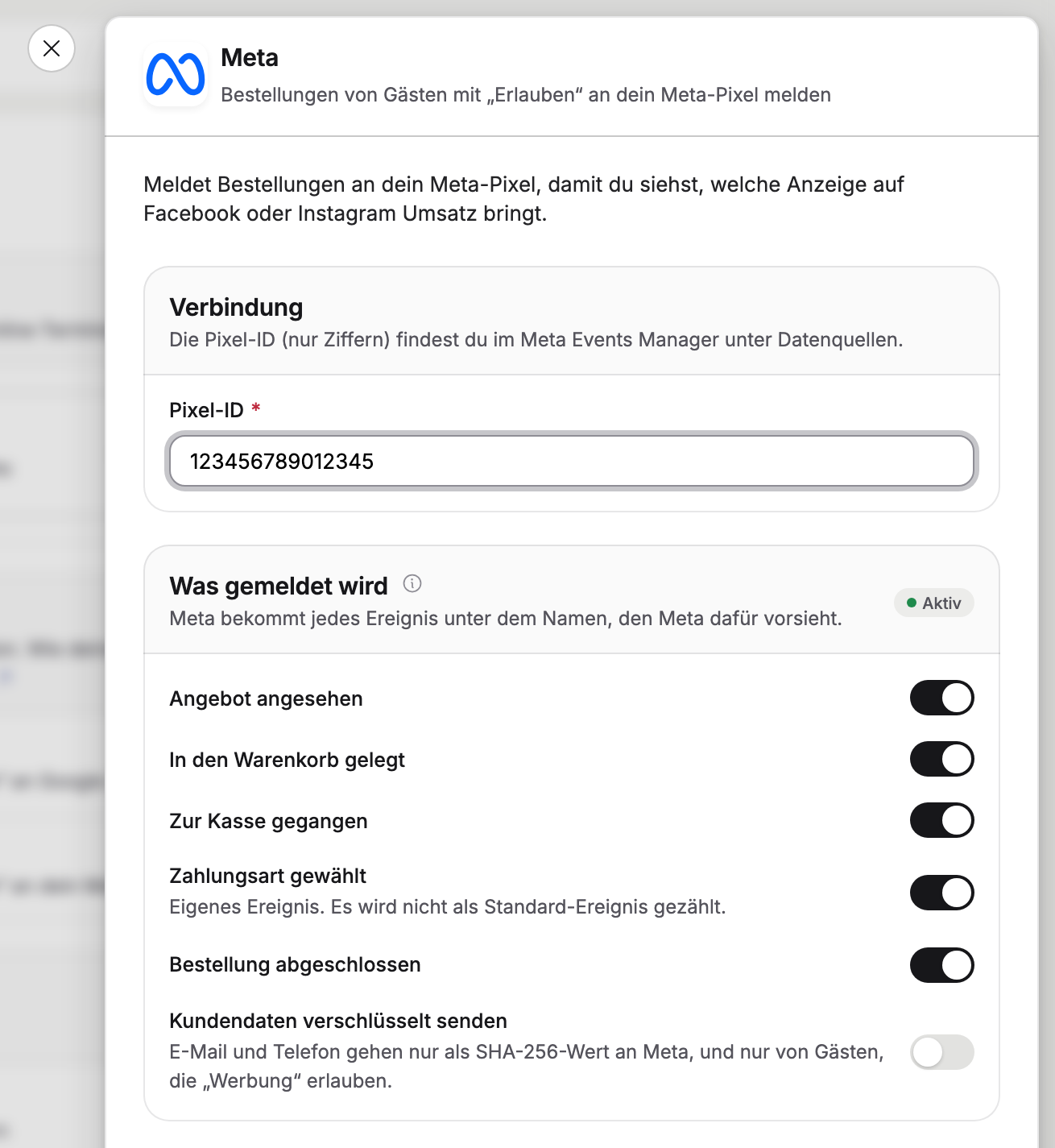
Where: Settings → Project → Integrations → Google Ads & Analytics / Meta → What gets reported
In the bookings list you tick several bookings and accept, move, set the status of or cancel them in one go. Each booking runs as it would on its own, and every customer gets exactly the email they would otherwise get. Afterwards you see how many worked and why one was skipped.
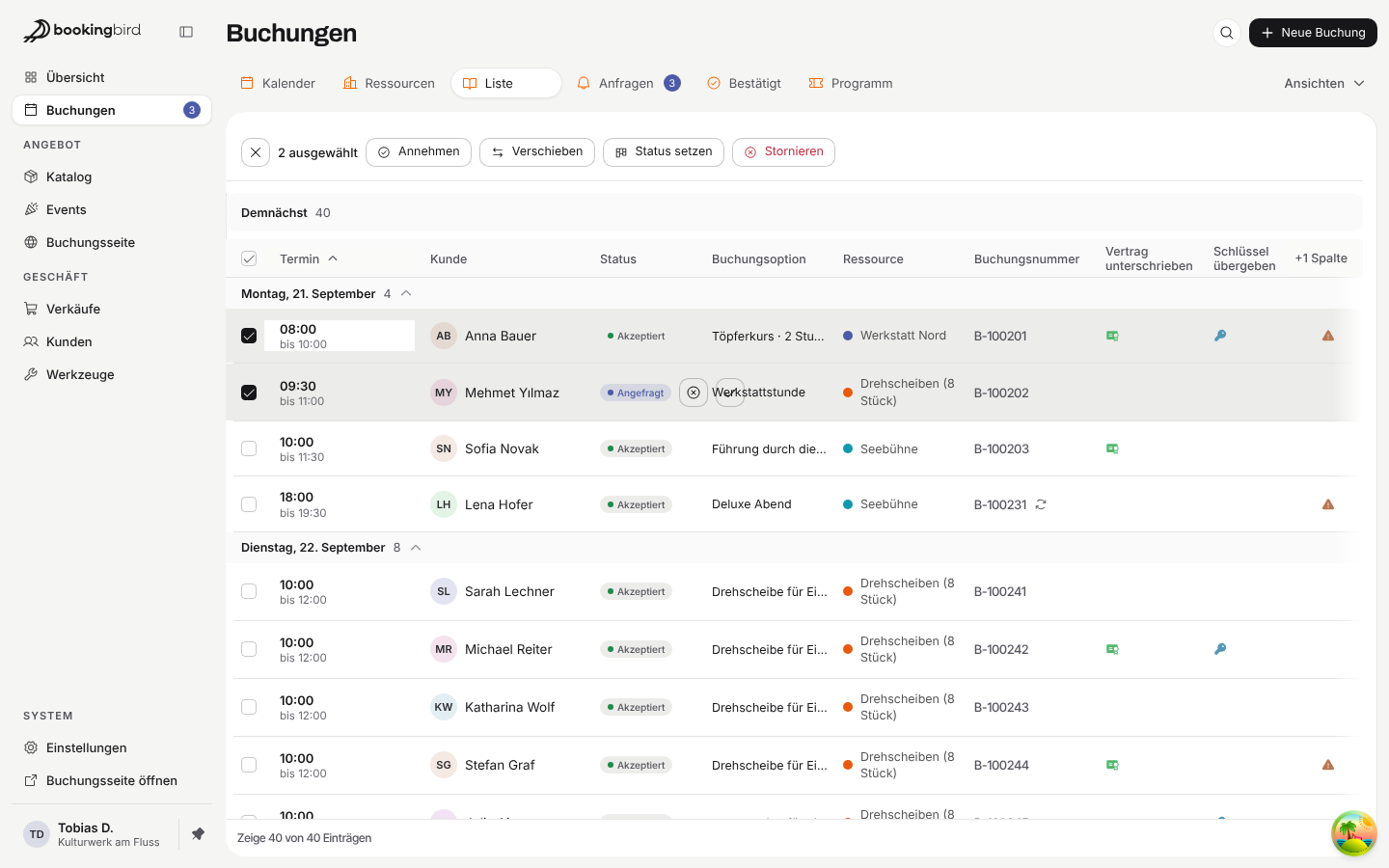
Where: Bookings → “List” view
Before you cancel, archive or block something, every window tells you under “What happens next” what the action sets off, e.g. “1 booking is refunded by its terms, €45.00 in total”. With a few consequences you get a sentence, with many a table where you can look at each affected booking. The box always stays open, on your phone too.
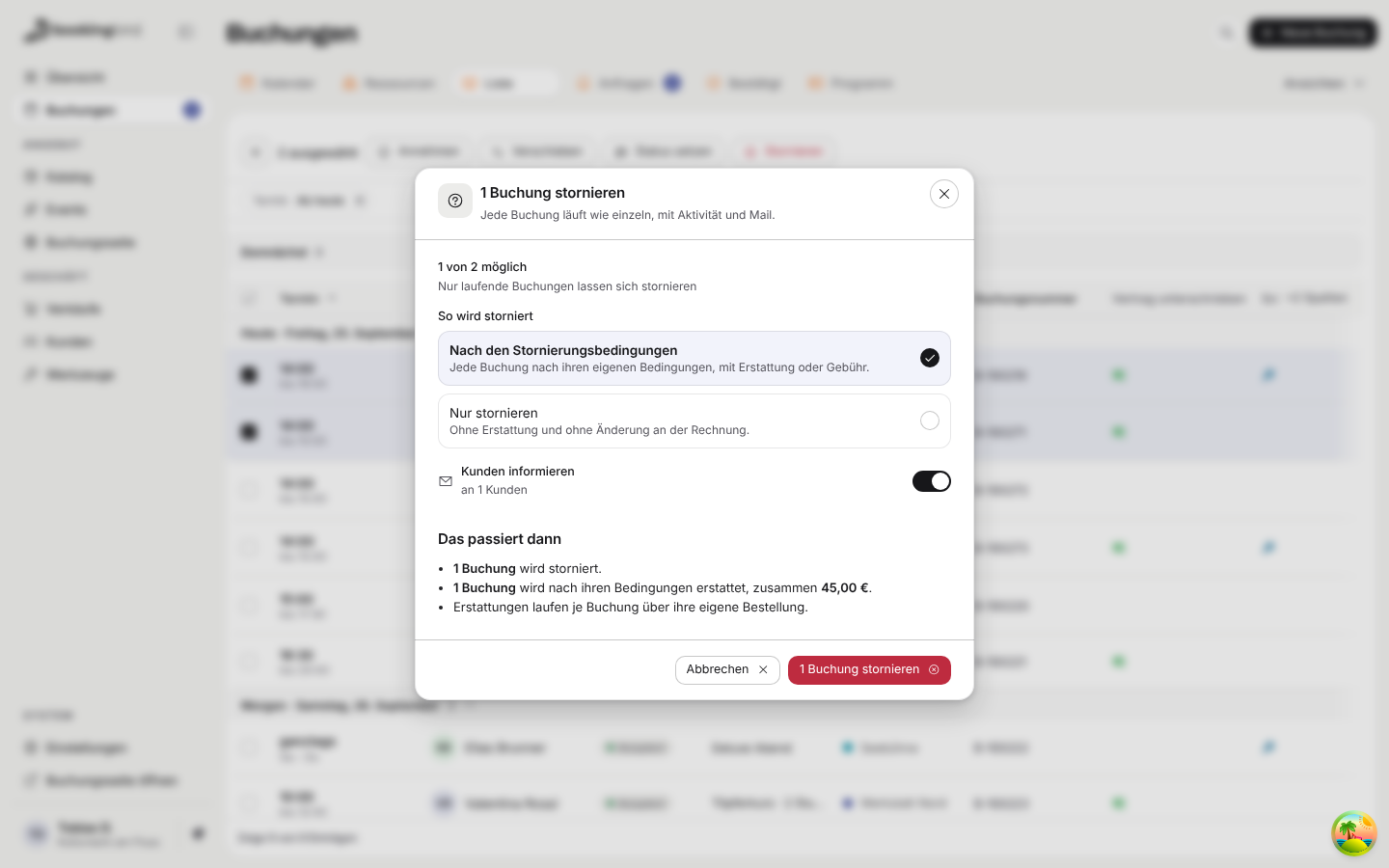
Where: Wherever you confirm something
In a booking, a ticket and a customer, the order now has its own row, with “Invoices” below it listing invoice, cancellation invoice and credit note, each with its status and amount. One click opens it in the side window without leaving the booking. From there, “Open full page” takes you further if you need more.
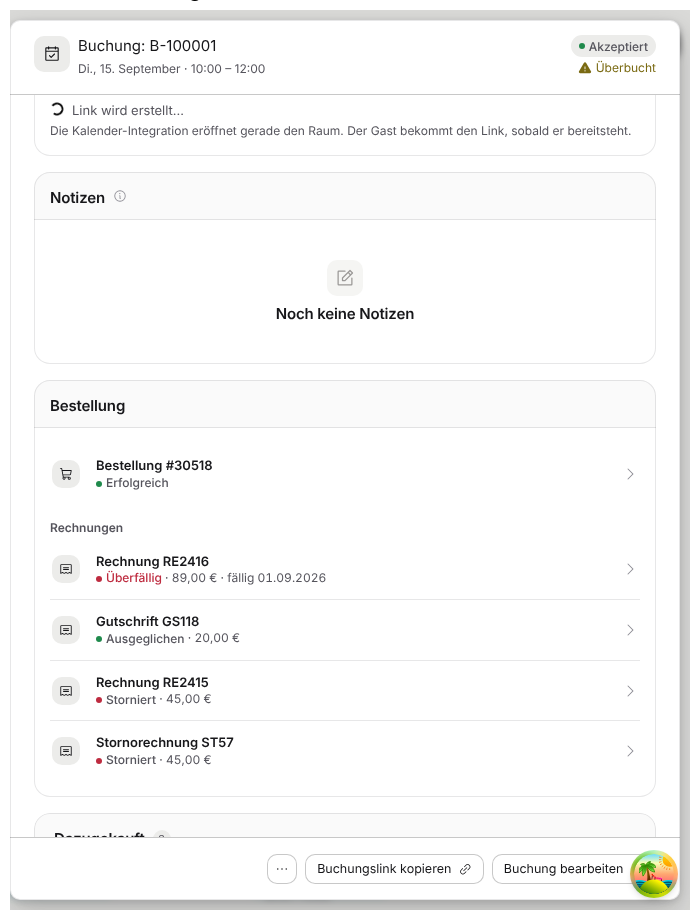
Where: Bookings → open a booking → Quick Links → Order
Appointments from your connected Google or Outlook calendar now show in the Bookingbird calendar as blocked time, exactly where they block a resource. Separately, “Add bookings” lets you decide whether Bookingbird writes your bookings into that calendar. Bookings your team creates in the dashboard go into the calendar too and disappear again when cancelled.
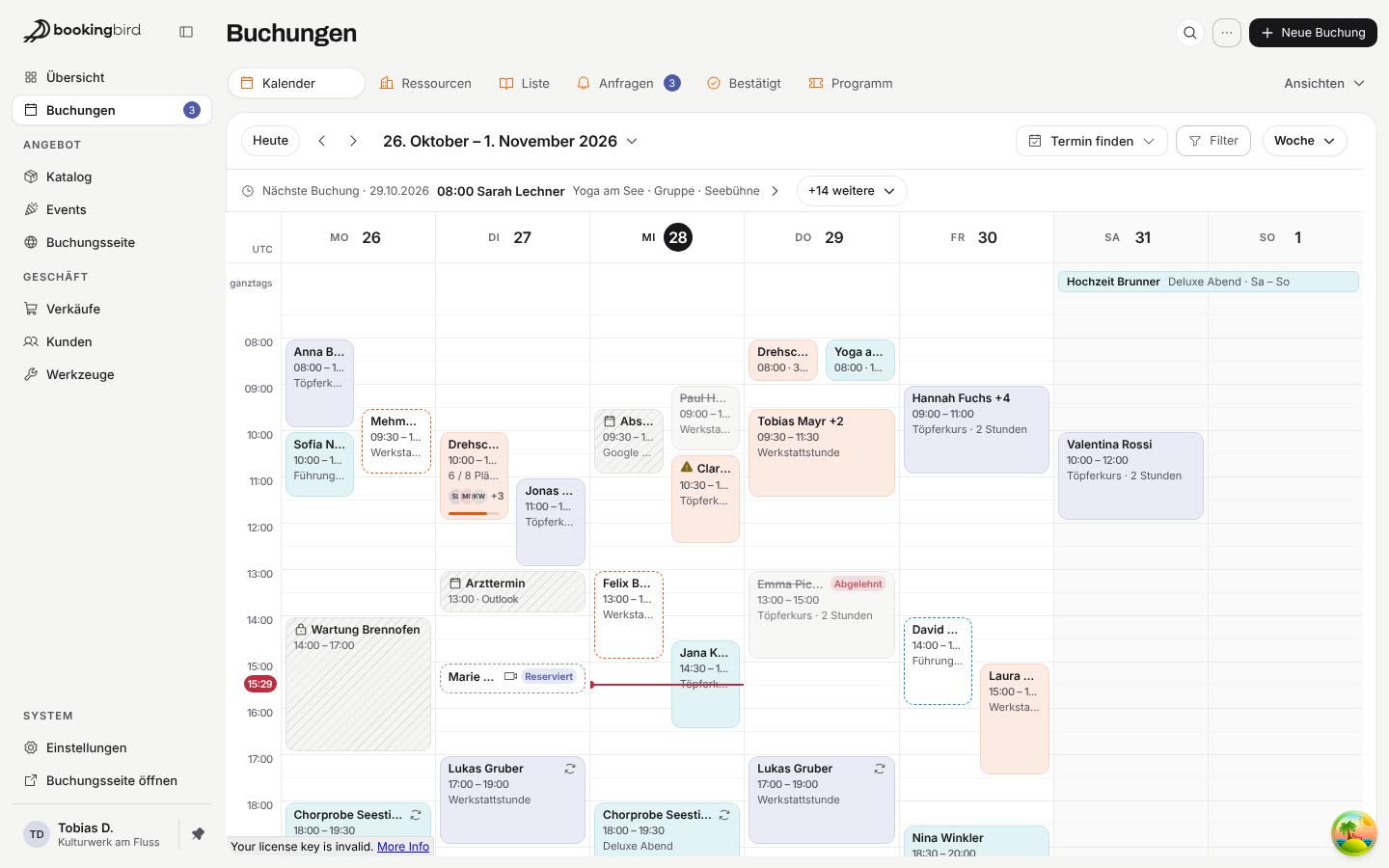
Where: Bookings → Calendar · Settings → Project → Integrations → Google / Microsoft 365 → Add bookings
And also: a workflow sends your customers their own coupon on their birthday, “End sale” takes a booking option off sale and brings it back later, and a payment recorded by mistake can be voided right on the invoice. The new “Payouts by event” report shows what was sold, refunded and paid out per event, you edit events in six clear tabs, and the image gallery can show partner logos as a strip. Plus more reliability: signing in and “Forgot password” no longer reveal which addresses have an account, and many windows now say exactly why something didn't work.