
Oct 27, 2026
Indigo 2.6 gives you more ways to take payments – gift vouchers, refunds as vouchers and tips when paying on site – and lets you plan courses, series and holidays the way your day really runs. Here are the highlights at a glance, followed by each new feature in detail and, at the end, every improvement and fix.
At a glance
Payments: Gift vouchers with a balance, refunds as a voucher or money with a processing fee, and tips when paying on site.
Bookings & courses: Cancel single dates of a series, add the next run of a course in one step, and new views for getting ready.
Availability & calendar: Holidays set once for the whole project, booking several resources at once, and one sync for Google and Outlook.
Keeping guests informed: One default for “Inform customer” and more options in workflows.
Booking page & marketing: Google and Meta with consent, more buttons in your page header, your own words, and single events on your website.
Reports & admin: Event settlement per date, tips as their own figure, number ranges with the year, and a dark dashboard.
Issue gift vouchers, such as a €50 present, or bring over the vouchers you already sold with their code. Guests redeem them at checkout in the same field as a discount code: for a €120 ticket and a €30 voucher, the card only pays €90, and whatever is left stays on the voucher as its balance. You can also take a voucher as payment on an open invoice, and if you pick a holder, the code can go straight to them by email.
First stage: Indigo 2.7 brings the voucher designer – you design your vouchers in your own look, and your guests buy them right on your booking page.
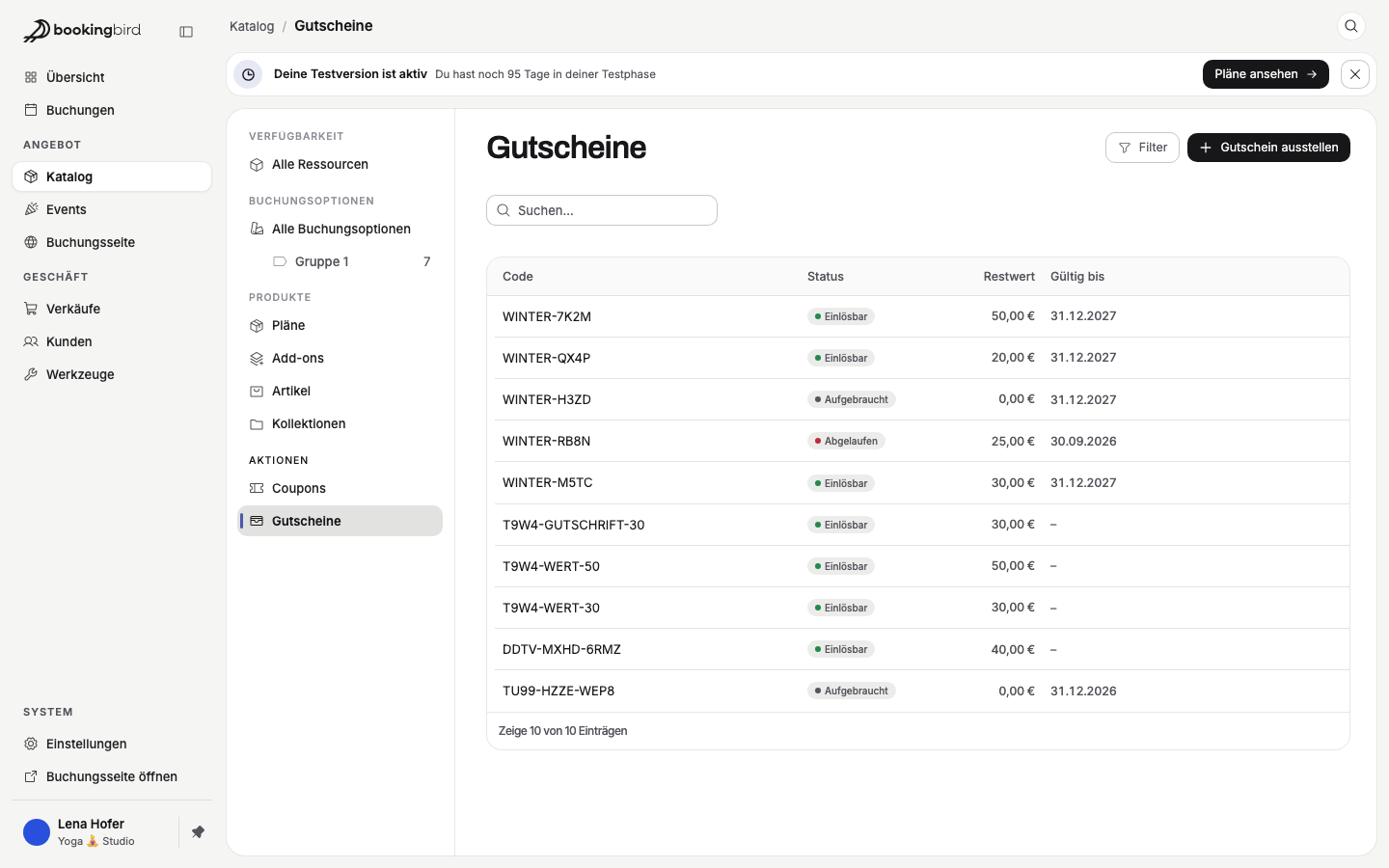
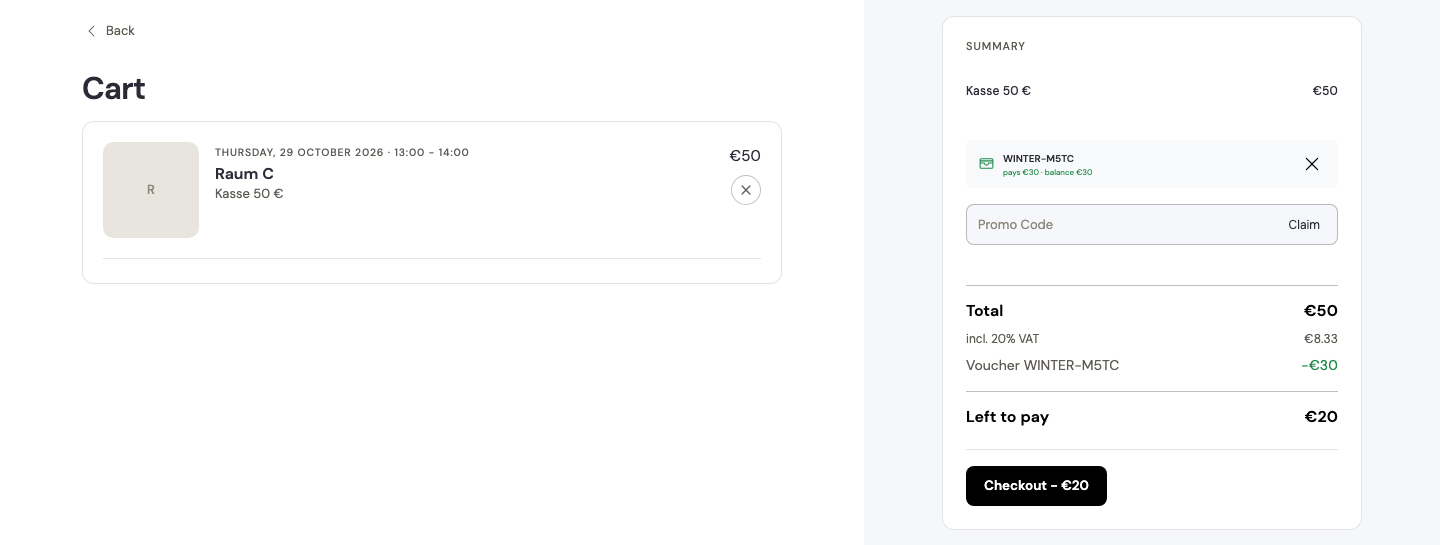
Where to find it: Catalog → Promotions → Vouchers · on an invoice: Record payment → Payment method “Voucher”
In your cancellation rule you decide how a refund goes back: as money, as a voucher, or the guest's choice. For refunds in money you can keep a processing fee. Before cancelling, the guest sees exactly what they will get – with €30 paid, a 50% refund and a €5 processing fee, for example “Money back €10” or “Voucher €15”.
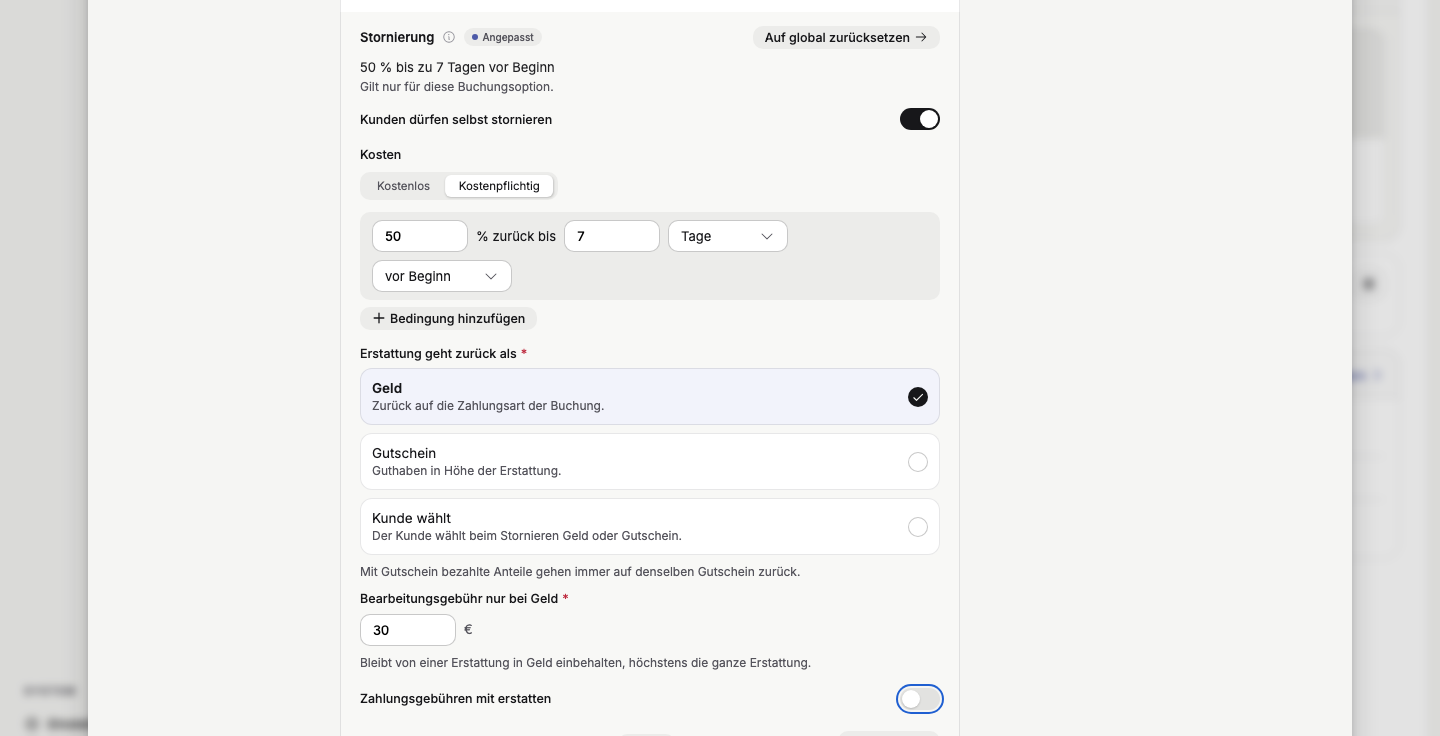
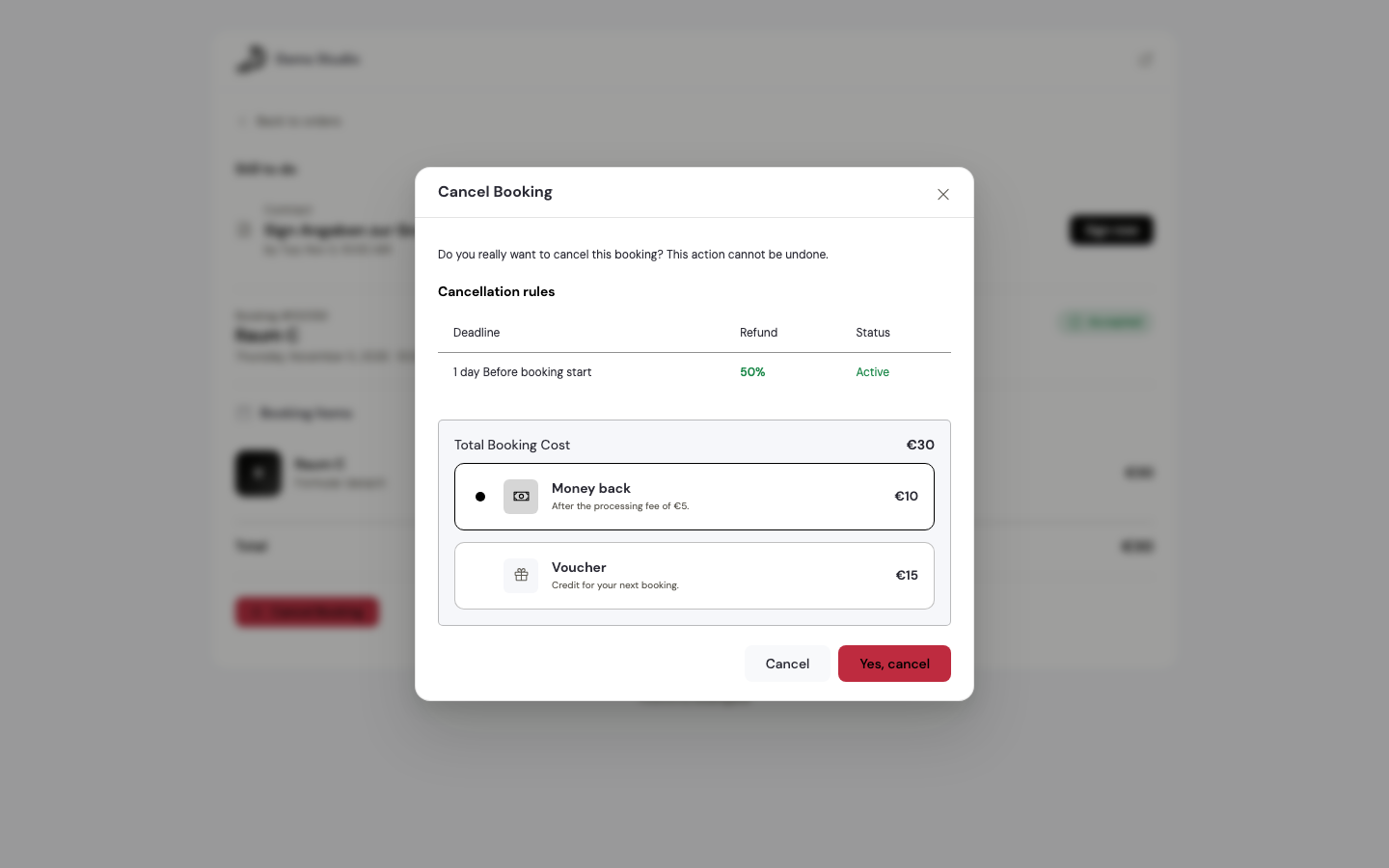
Where to find it: Catalog → Booking Options → open an option → After booking → Cancellation → Customize · for the whole project: Settings → Booking → Booking rules → Cancellation
If you have tips switched on, guests can now choose one when paying on site as well. The tip shows as its own line on the order and invoice and counts towards the amount due; if the guest changes their mind at the till, you remove just that line. In your sales overview, the new figure “Of which tips” shows how much of your revenue came from tips.
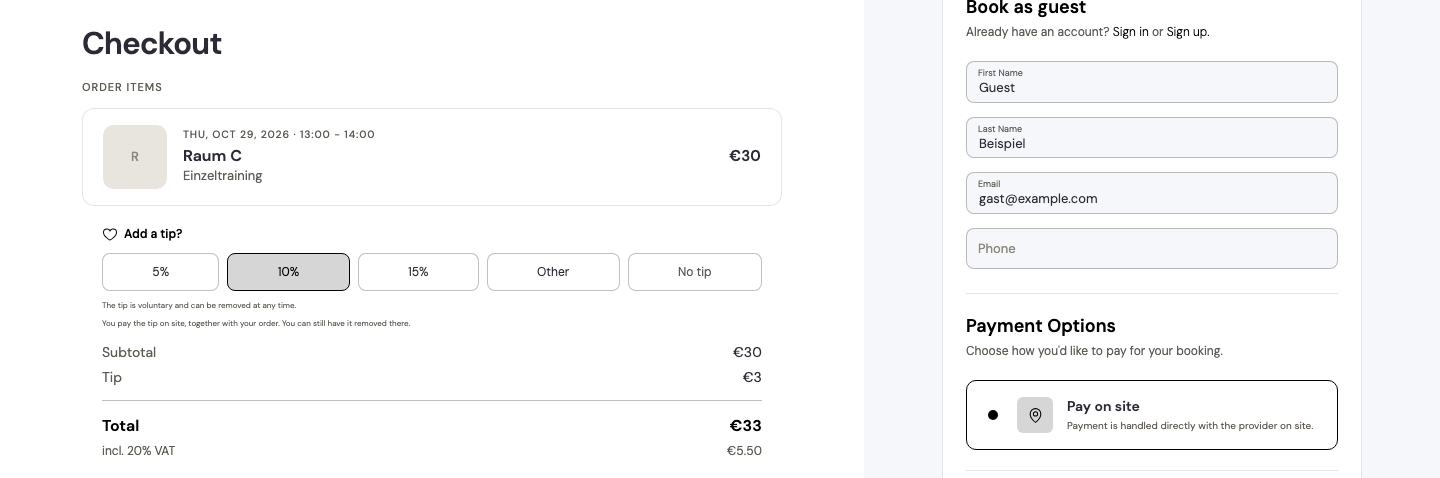

Where to find it: Settings → Project → Finance → Payments → Prices & fees → Tips · figure: Sales → Overview
If a member reverses a subscription payment through their bank, Bookingbird now notices: the payment shows as “Charged back”, the invoice is open again, and the member gets an email with “Pay now”. Their benefits continue for 9 more days, after which the subscription pauses until it is paid. This also applies when the very first payment is charged back.
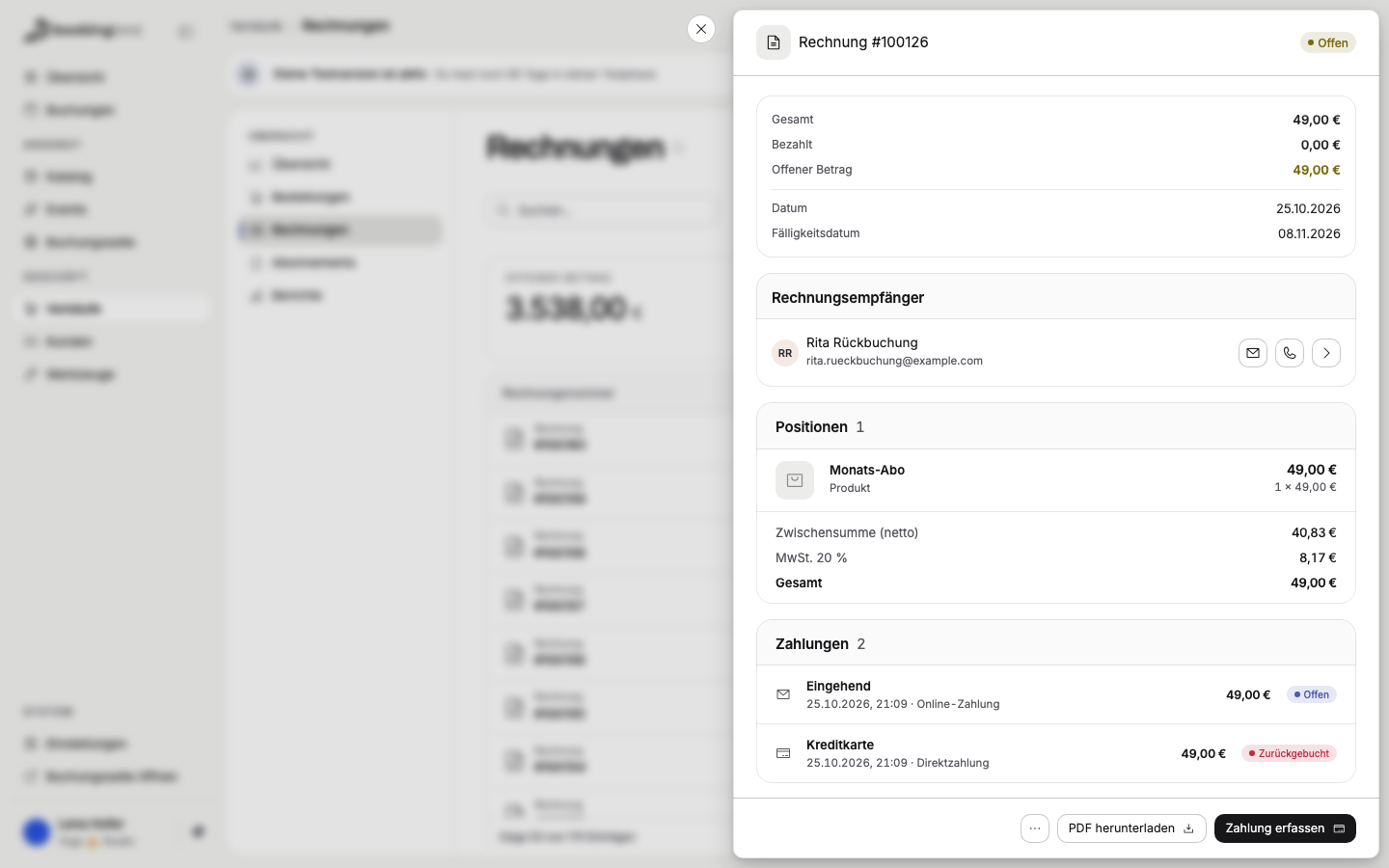
Where to find it: Sales → Invoices → open an invoice → Payments · Sales → Subscriptions → open a subscription → Activity
With a booking series you no longer have to cancel the whole booking. Choose “Only this date”, “This and all following” or “All dates”, and see what happens to the money before you confirm. Example: five dates at €30 each and one is cancelled – the open invoice drops from €150 to €120, or, if the series is already paid, the guest gets a €30 credit note. Your guest receives an email about it.
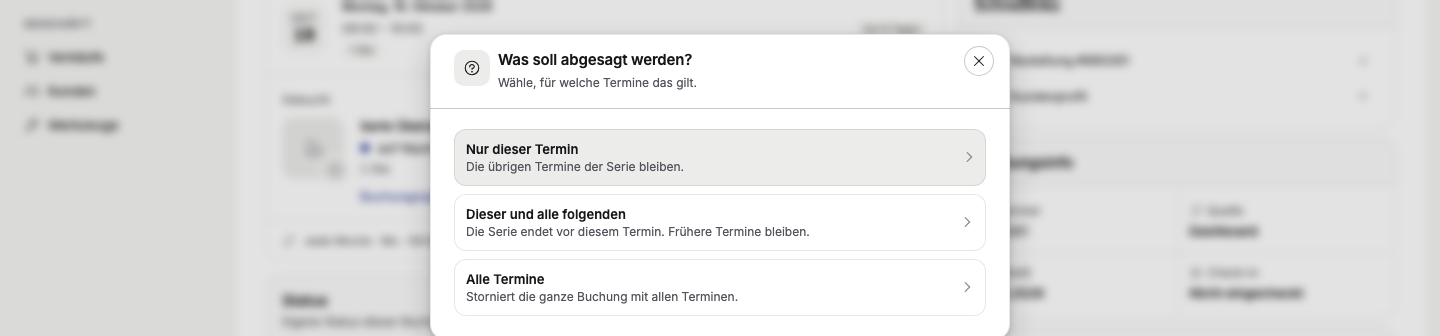
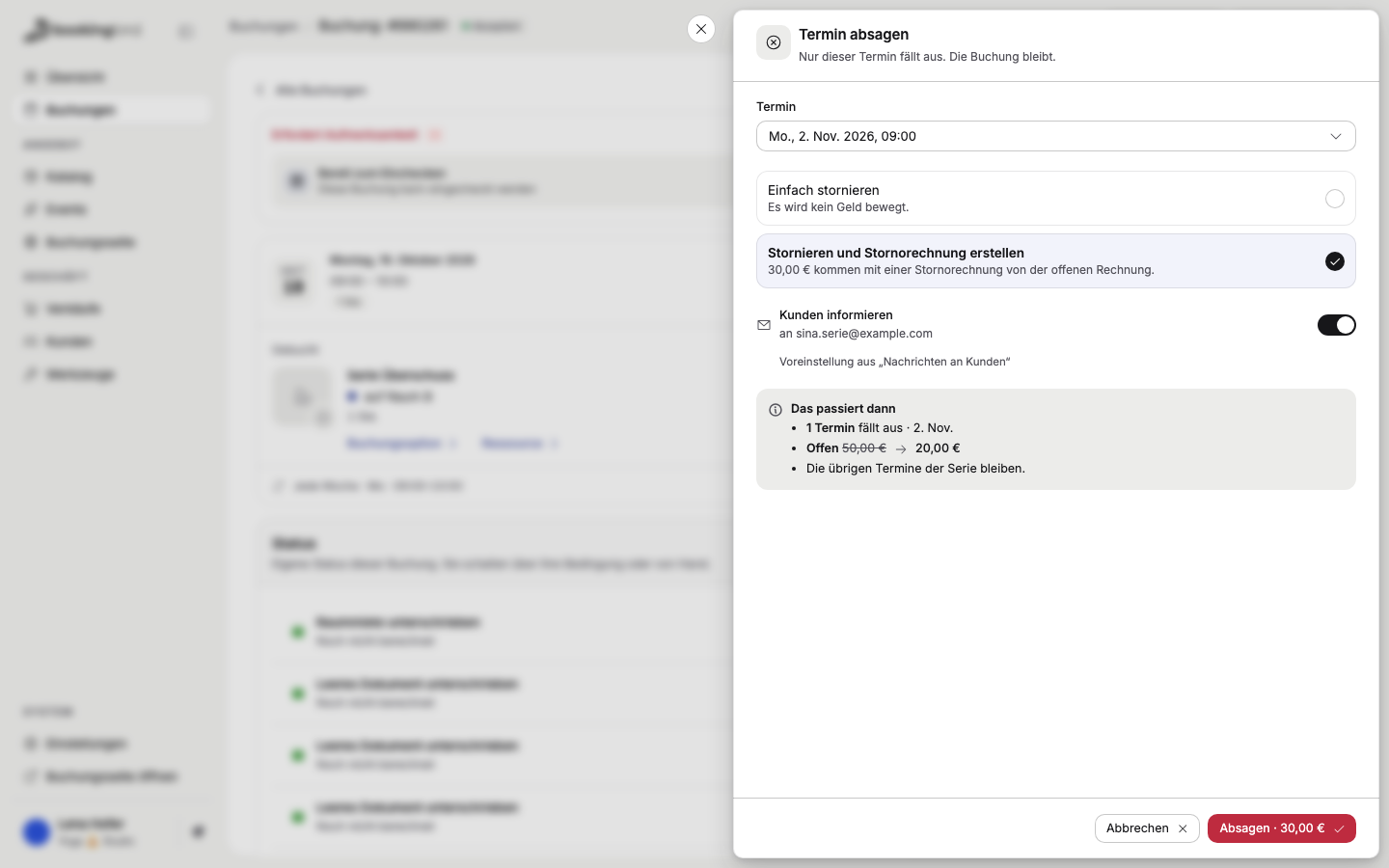
Where to find it: Bookings → open a booking → ⋯ → Cancel Booking
Two new ready-made views save you from opening every booking. “Preparation” shows, day by day and per booking, how many people are coming and which items and add-ons they booked, such as “2 × rental shoes · drink” – also as a file to export. “Open until start” lists every booking where the guest still owes a contract, a form or details before the date; once everything is done, the booking drops off the list.
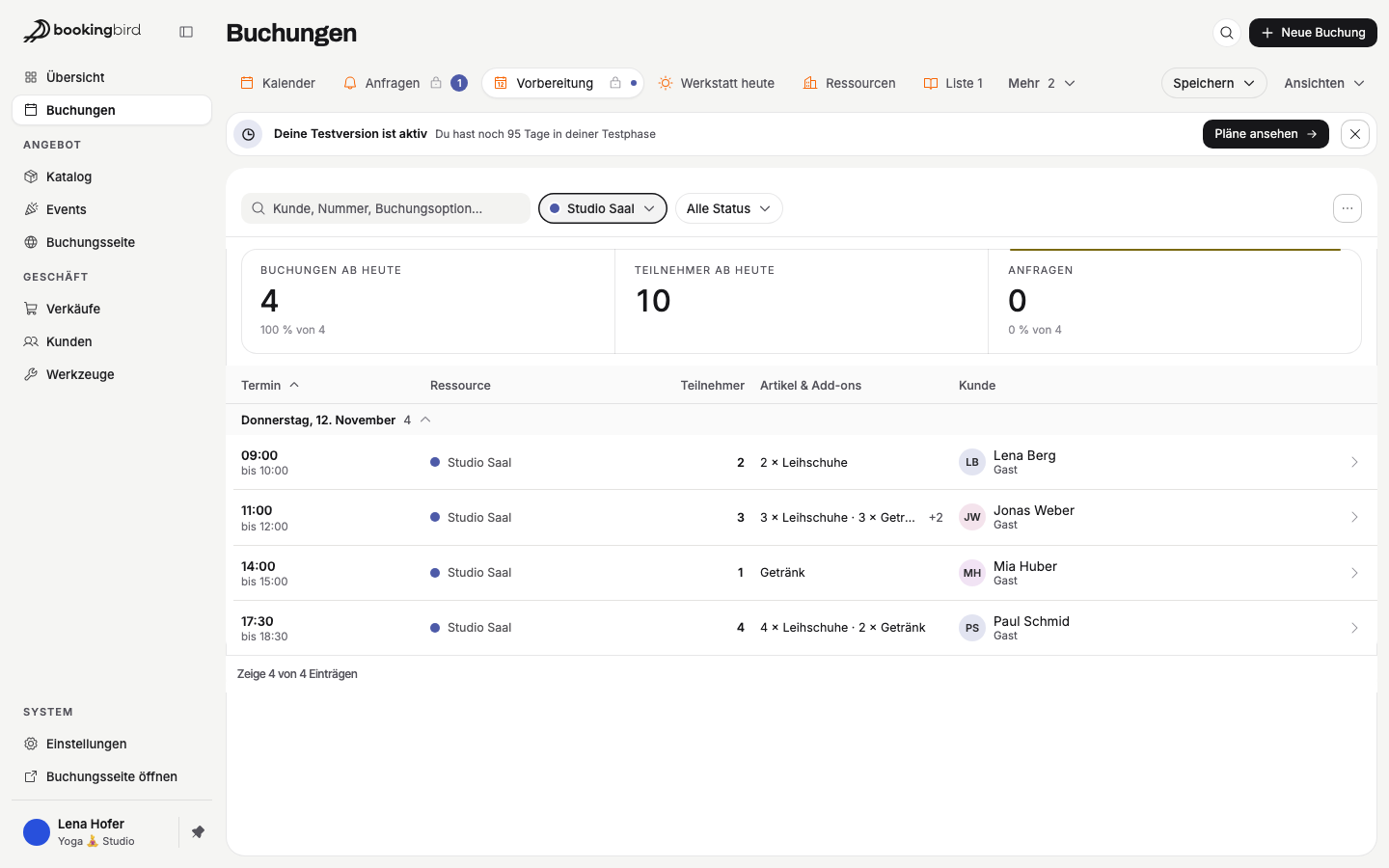
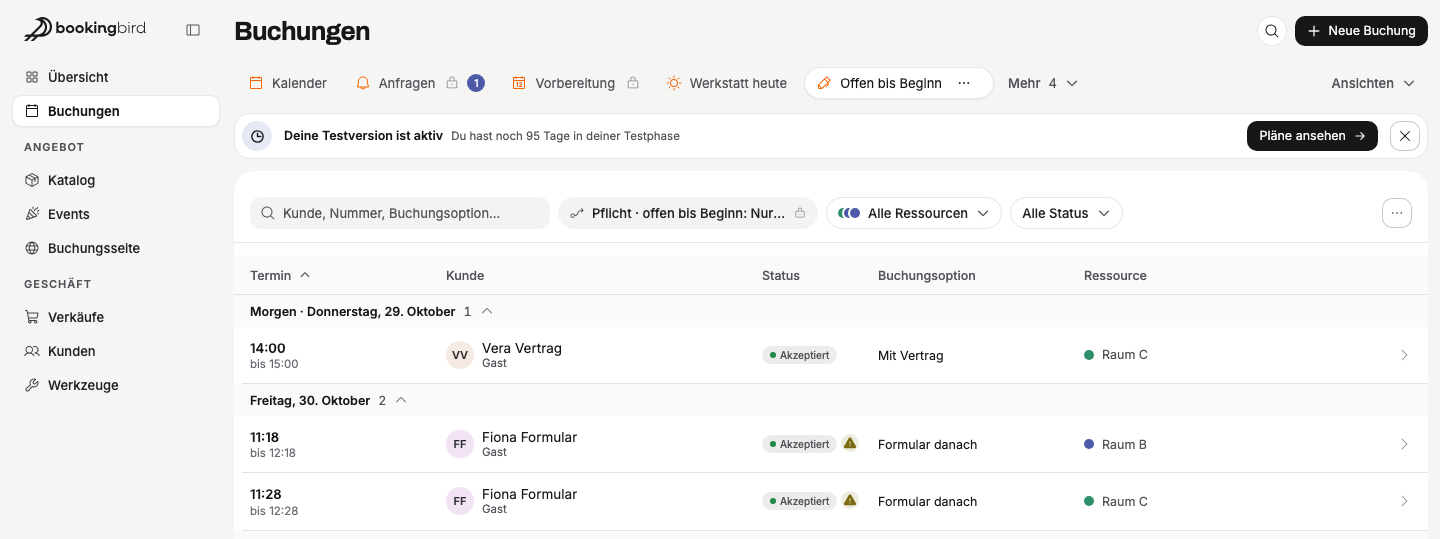
Where to find it: Bookings → Views → Preparation or Open until start
When you take a booking yourself, for example for a company group on the phone, you can now confirm it even though the contract isn't signed yet. The spot and the price are secured. The booking's “Documents” card shows that the contract is open and due by the start, and you can resend the link in one click; if the contract is still open when the booking starts, it is marked in red.

Where to find it: Bookings → New Booking · then open the booking → Documents
If you offer your page in several languages, you can now add a translation for each question you ask your guests. Ask for “Körpergröße” and an English-speaking guest reads “Height”; questions without a translation still appear in your main language.
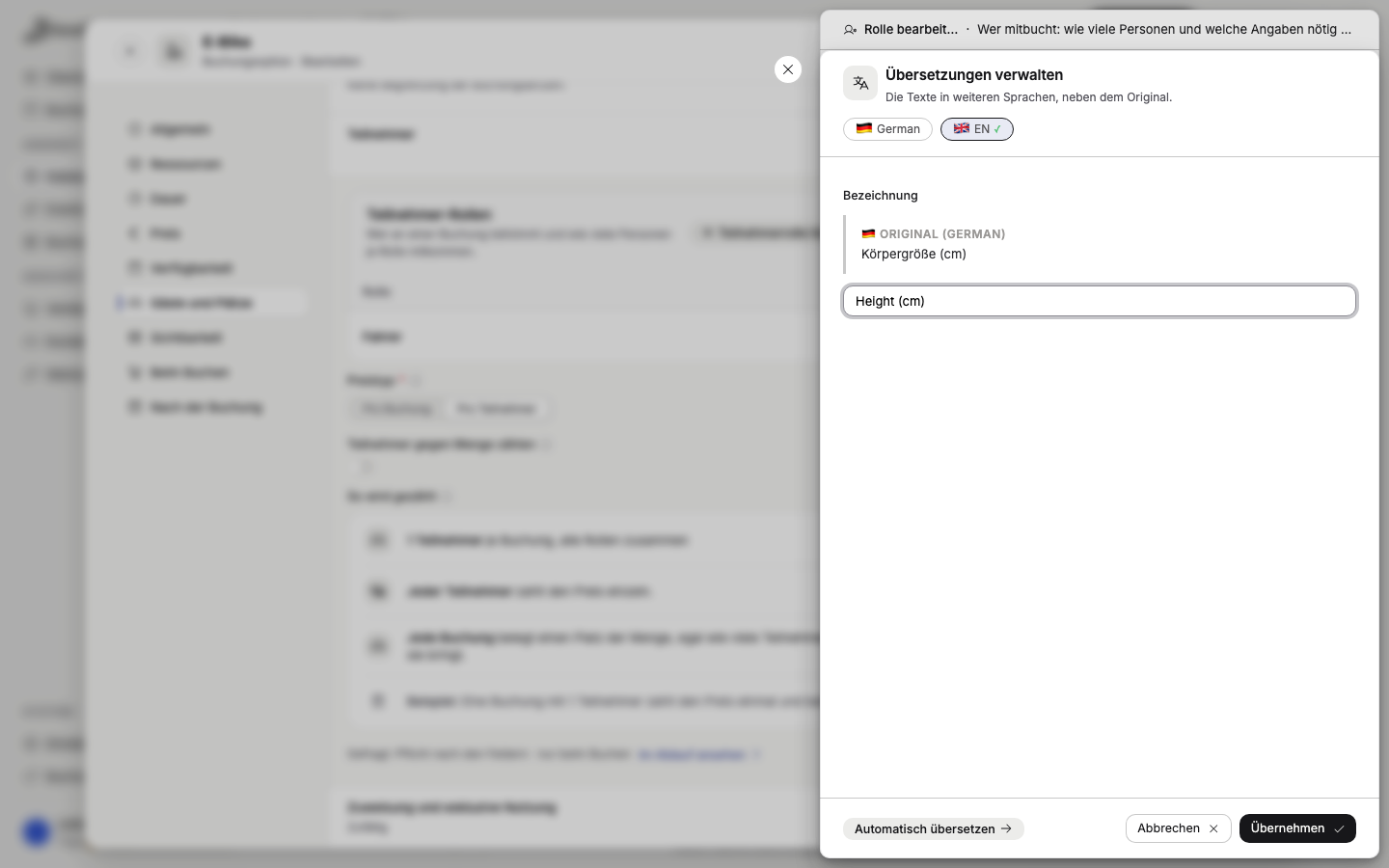
Where to find it: Catalog → Booking Options → open an option → Guests and places → Participants → Edit role → Collect participant data → Translations
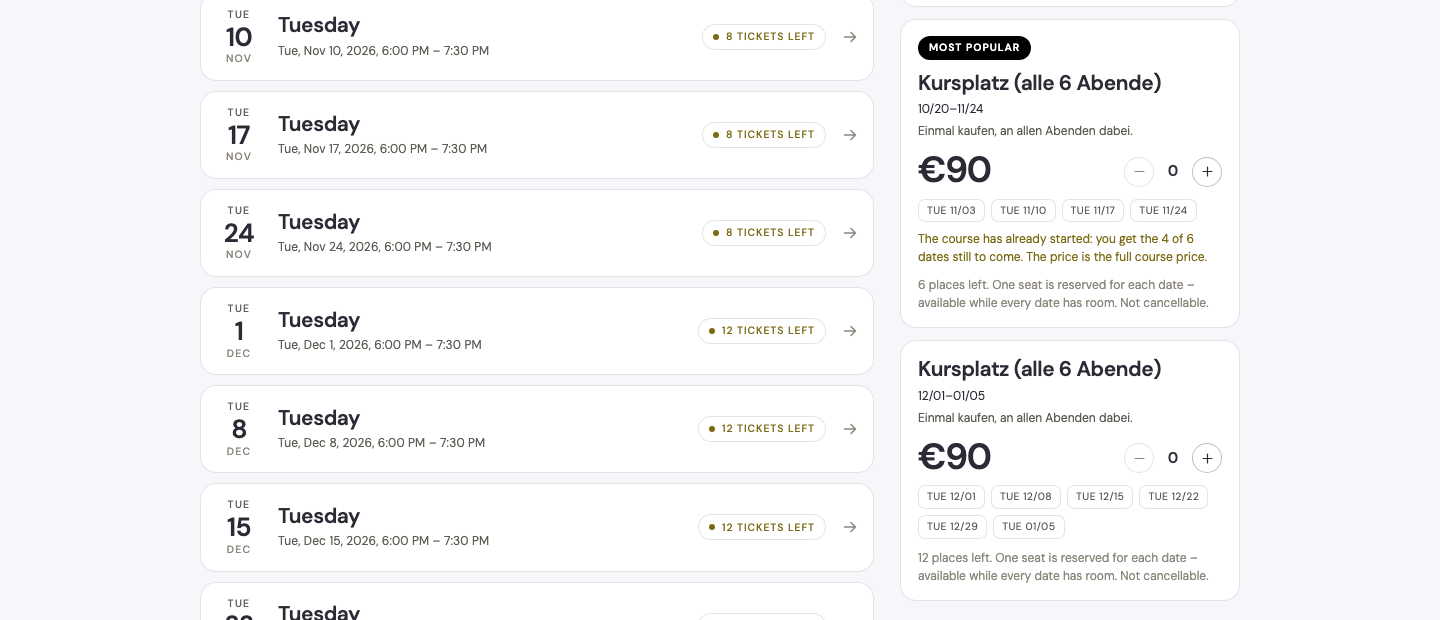
If your course is going well, add the next run in one click: pick when it starts and you get the same dates with their own spots – for example six Tuesdays from January instead of in autumn. On your booking page, guests see a separate card for each run, named after its dates, and buy exactly that run.
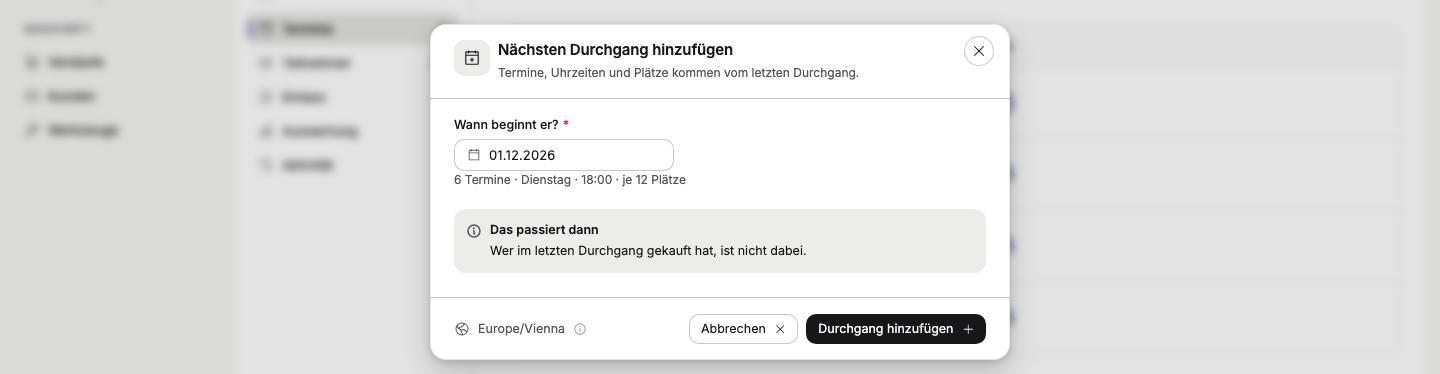
Where to find it: Events → open an event → Dates → ⋯ (top right) → Add next run
If an evening runs longer than planned, just change the end time in “Edit this date”. The date no longer counts as “Rescheduled”. If you like, all ticket holders get the email “New end time” with the old and new time.
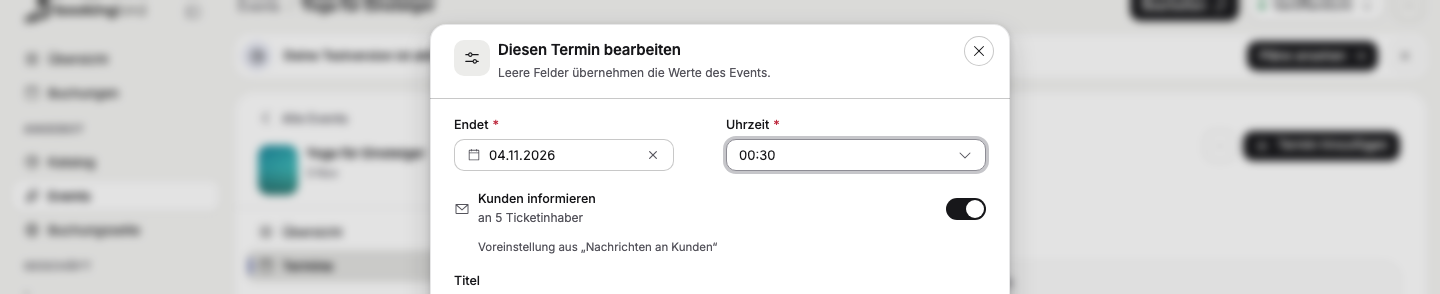
Where to find it: Events → open an event → Dates → ⋯ on the date → Edit date → Ends
If you don't sell a ticket online, the event page now tells your guests clearly where to get it: “At the box office”, “From another provider” or “For information only”. If you add the partner's link, a “Buy from partner  ” button appears and opens the partner's page in a new tab.
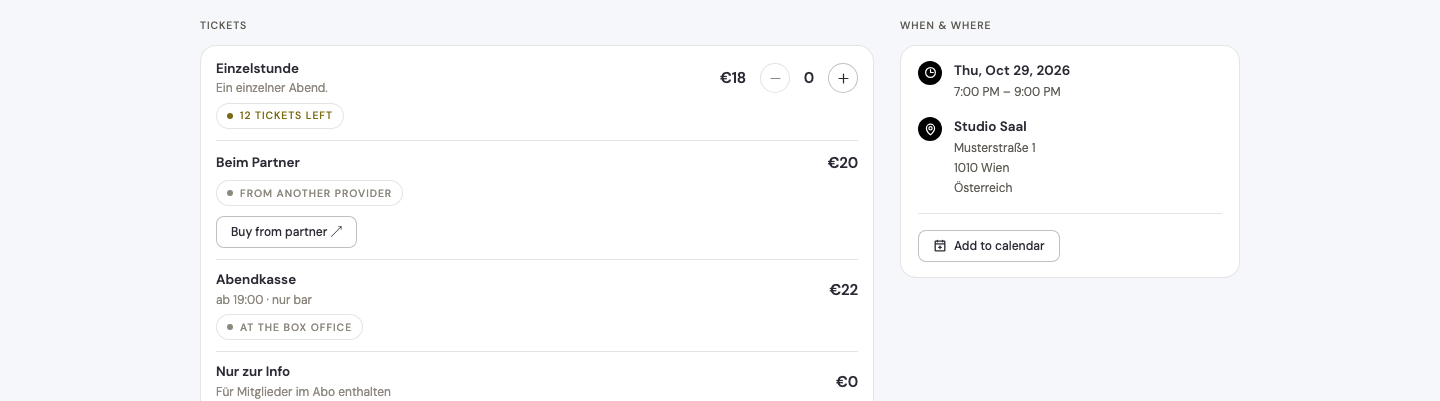
Where to find it: Events → open an event → Ticket options → ticket option → Sales → Another provider or announce only
Besides booking options and resources, you can now embed a single event on your own website. Your visitors see that event's dates and tickets there and book straight away. If an embed has nothing selected yet, the field tells you what's missing.
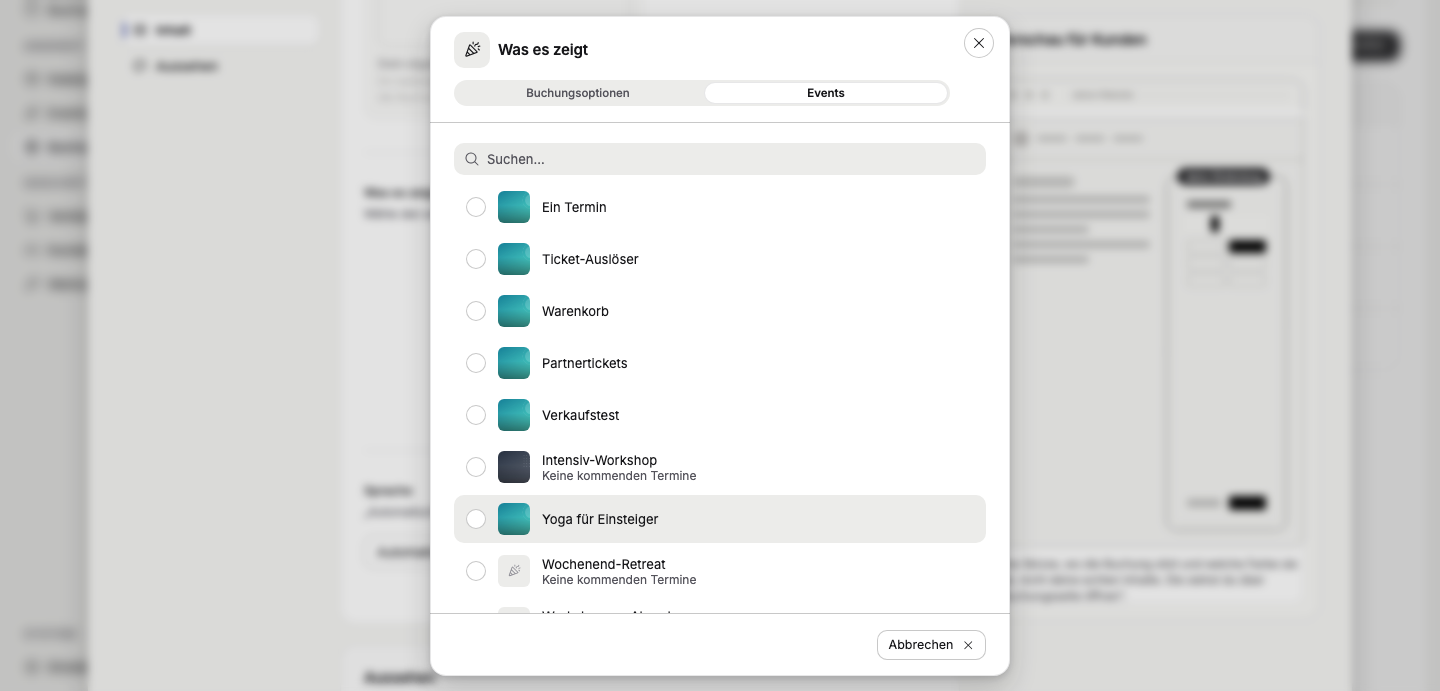
Where to find it: Booking Page → On your website → Embeddings → Create embedding → Single offering → Select entry → Events
You now set holidays in one place for your whole project: pick your country and region, then choose whether holidays are bookable “Like other days”, “Closed” or with “Own hours”, such as only from 10:00 to 14:00. If one resource differs, you set an exception just there.
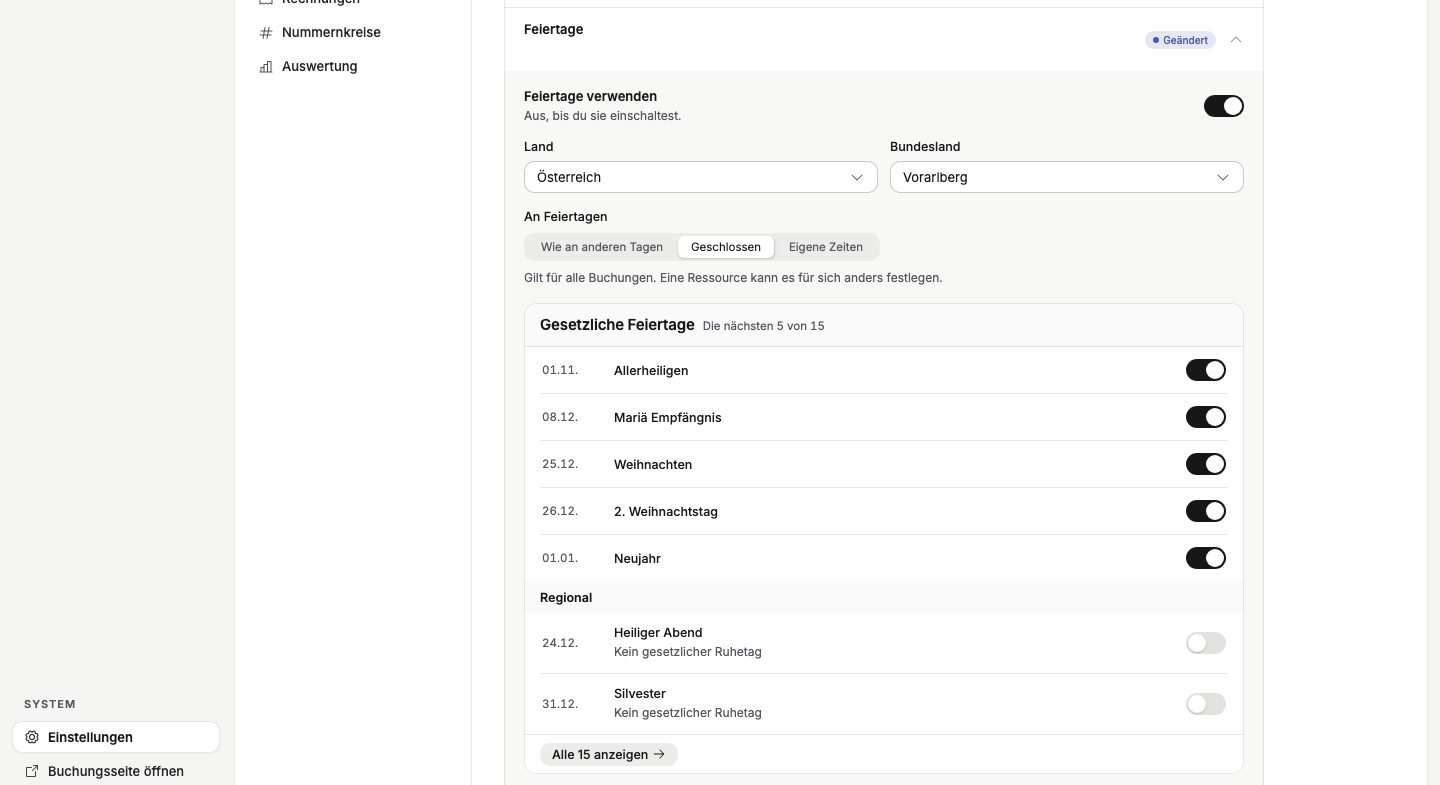
Where to find it: Settings → Project → General → Region and languages → Holidays · per resource: open a resource → Availability → On holidays
If you have several identical resources, say four bikes, and a guest picks “2”, your booking page only shows times when two really are free. That way your guest only sees times that work for their whole group.
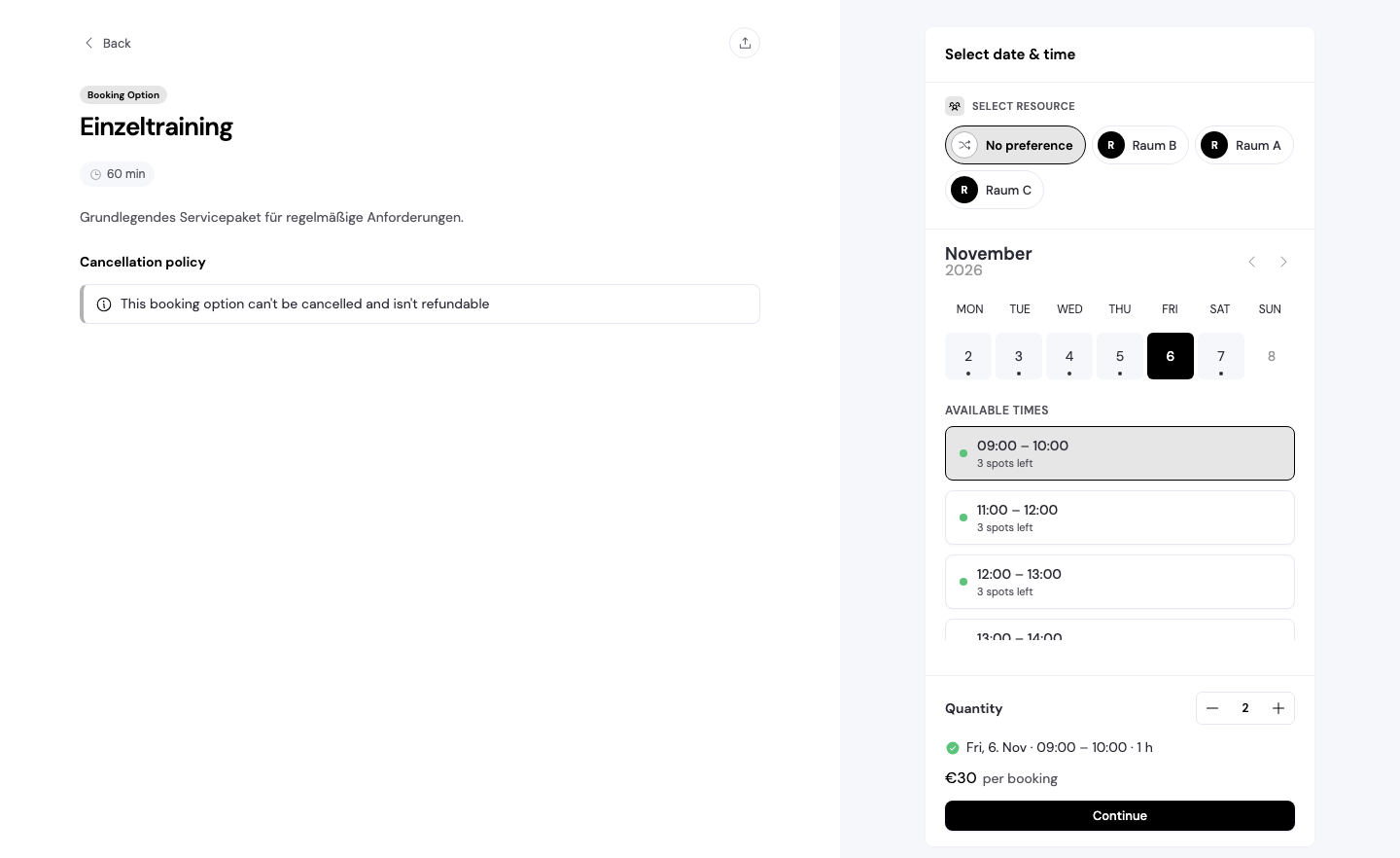
Where to find it: on your booking page, for booking options with several identical resources
Google and Outlook now share one section, and with every new connection, private appointments in your calendar block your times right from the start. After the first sync it says, for example, “14 events in your Outlook calendar block 3 of 4 resources in the project from now on”. Events marked “Free” in Outlook block nothing, and when you disconnect, you decide whether upcoming bookings are removed from your calendar.
Where to find it: Settings → Project → Integrations → Calendars · per resource: open a resource → Availability → Calendar sync
Every window that affects your guests – cancelling, rescheduling, changing participants – now has the same “Inform customer” line, showing where the email will go. You decide once for your project whether it starts switched on. When it is switched off, no email goes to your guests; you can send links and credit notes later with “Send link” or “Send credit note”.

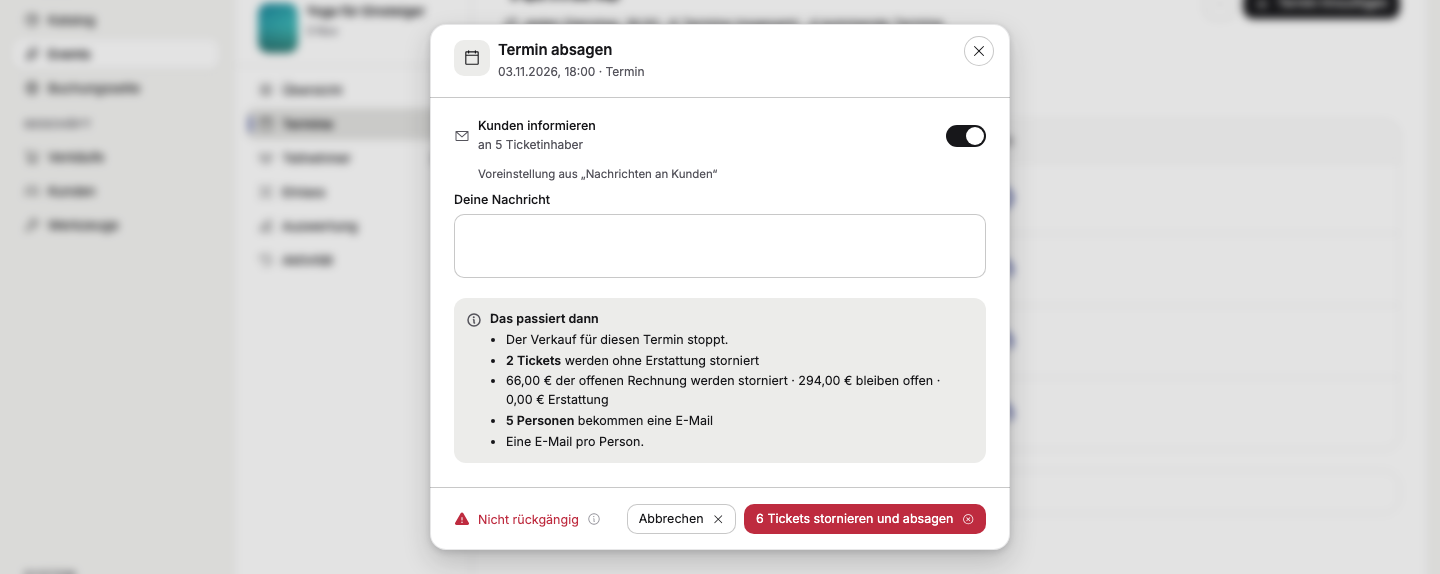
Where to find it: Settings → Booking → Messages to customers → When your team changes something
A new trigger starts a workflow as soon as a ticket is issued – for courses once per course spot instead of once per session, so a guest with eight sessions gets one email, not eight. In booking workflows you can also wait for documents: with the condition “Document: rental agreement · is signed”, an access code only goes out once the contract is signed.
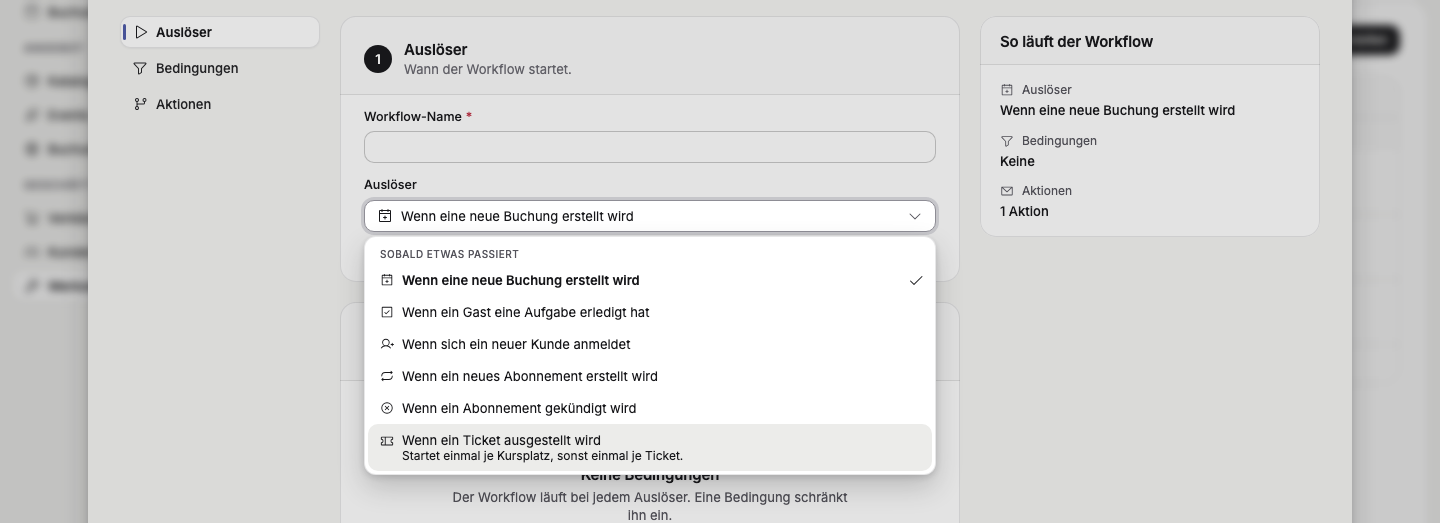
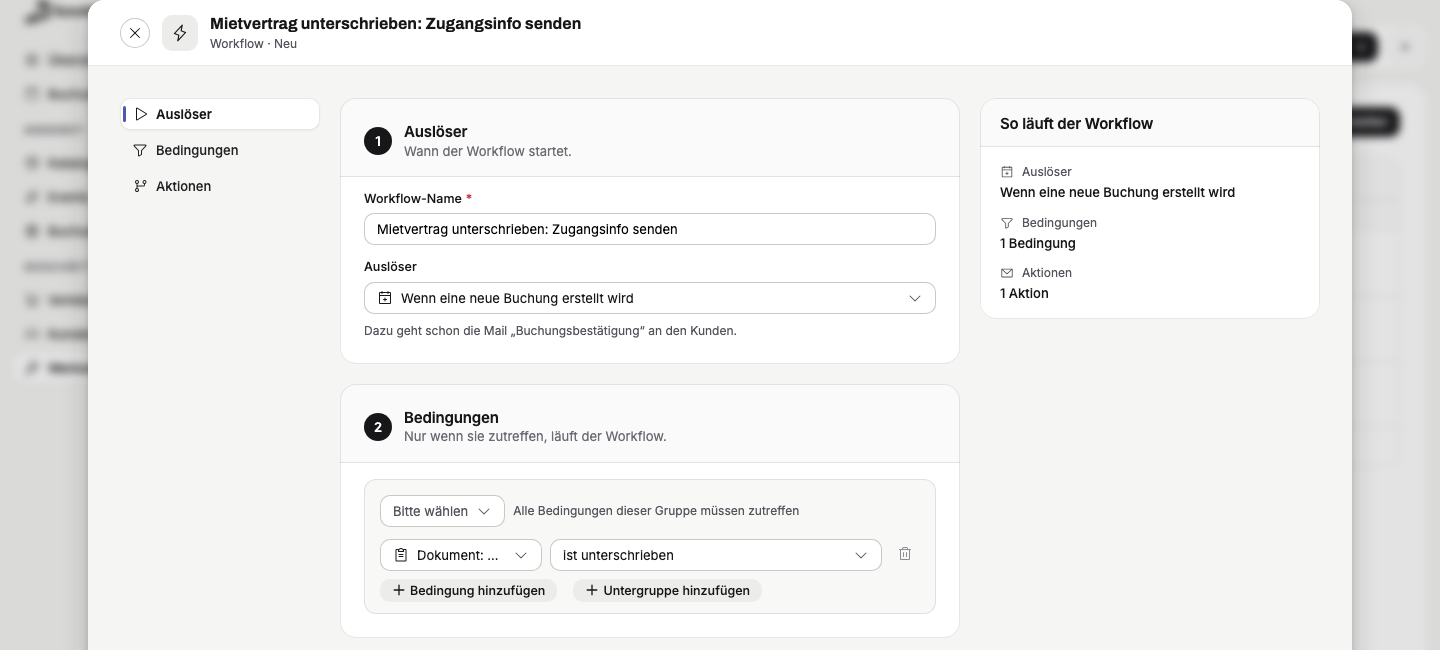
Where to find it: Tools → Workflows → Create Workflow → Trigger or Conditions
Connect Google Ads & Analytics and Meta to your booking page and see on every order where the guest came from, such as “instagram / story · campaign autumn-2026”. Your guests decide on a simple card whether to allow statistics and advertising, and can find their choice at any time under “Cookies & Tracking”. In the same place, the “Follow EU cookie rules” switch decides whether your page asks first.
First stage: With Indigo 2.7 you will also see in Google and Meta how many guests view an offer, add a date to the cart and choose a payment method – only with consent.
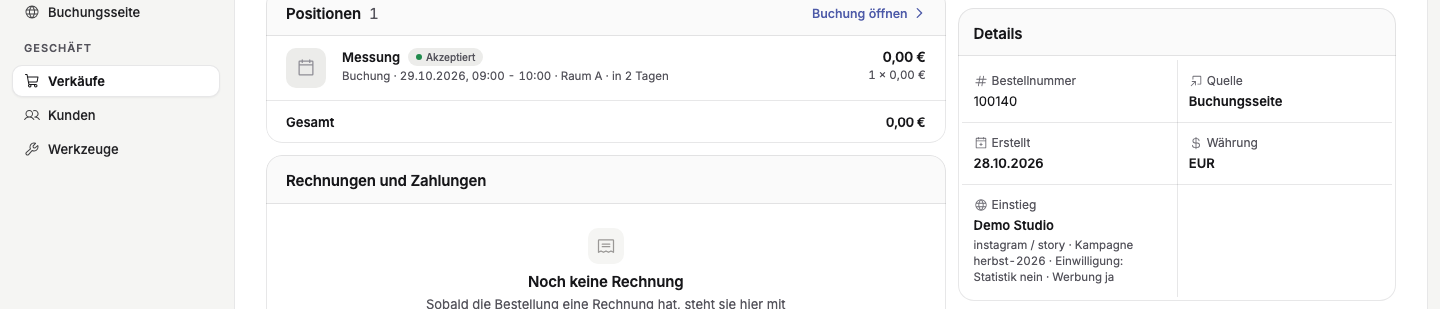
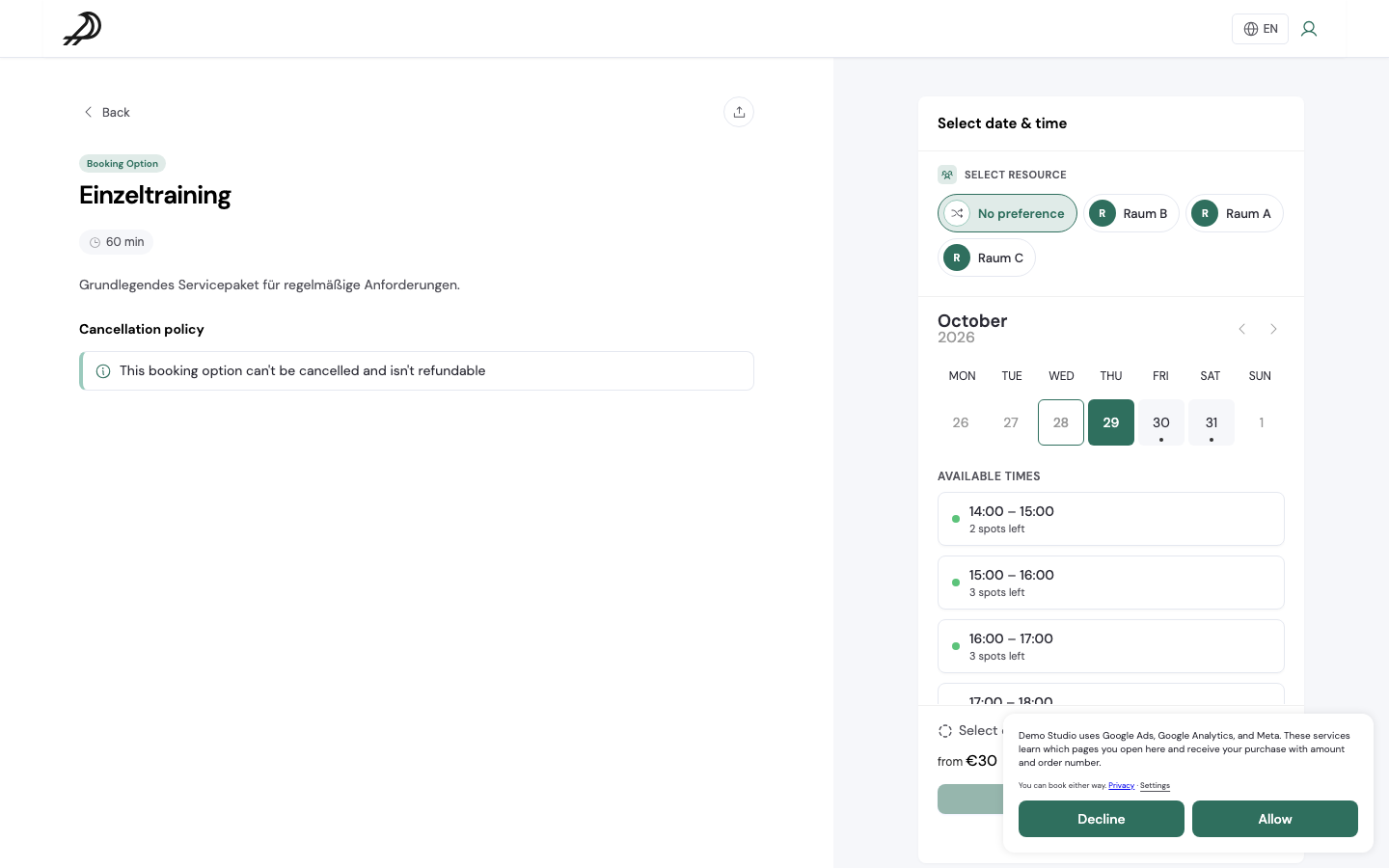
Where to find it: Settings → Project → Integrations · Booking Page → Settings → Cookies & Tracking · on the order: Details → Entry
You can now add as many buttons as you need to your booking page header, for example for your price list, courses, vouchers and contact. Four are shown, the rest go into a “More” menu; the editor tells you for each button where it will appear.

Where to find it: Booking Page → open a page → Sections → Header → Buttons
Do you call your plans “courses” or your subscriptions “memberships”? Under “Own words” you set what these terms are called for your guests, in singular and plural and per language. Your booking page then uses them everywhere, from the catalog to the customer account.
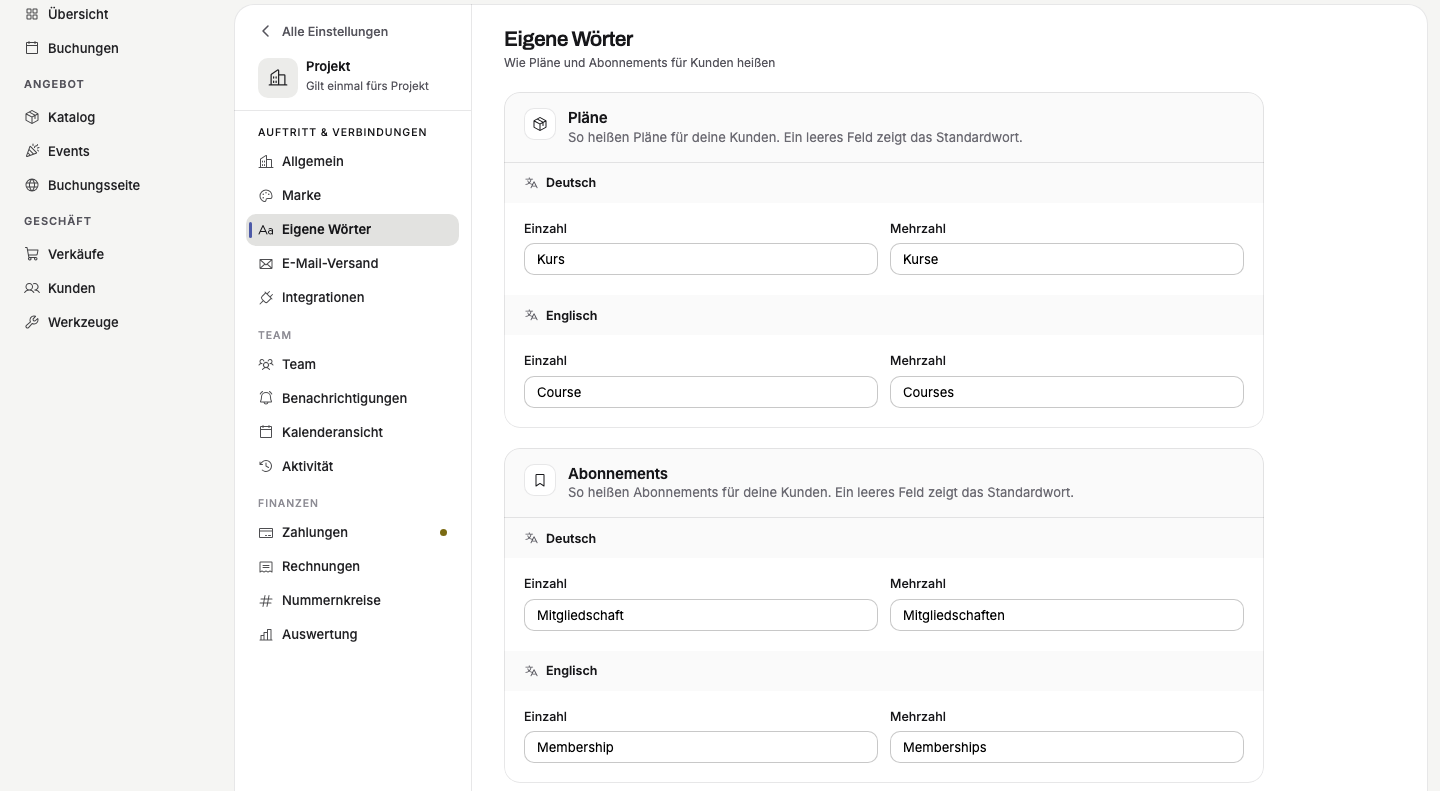
Where to find it: Settings → Project → Own words
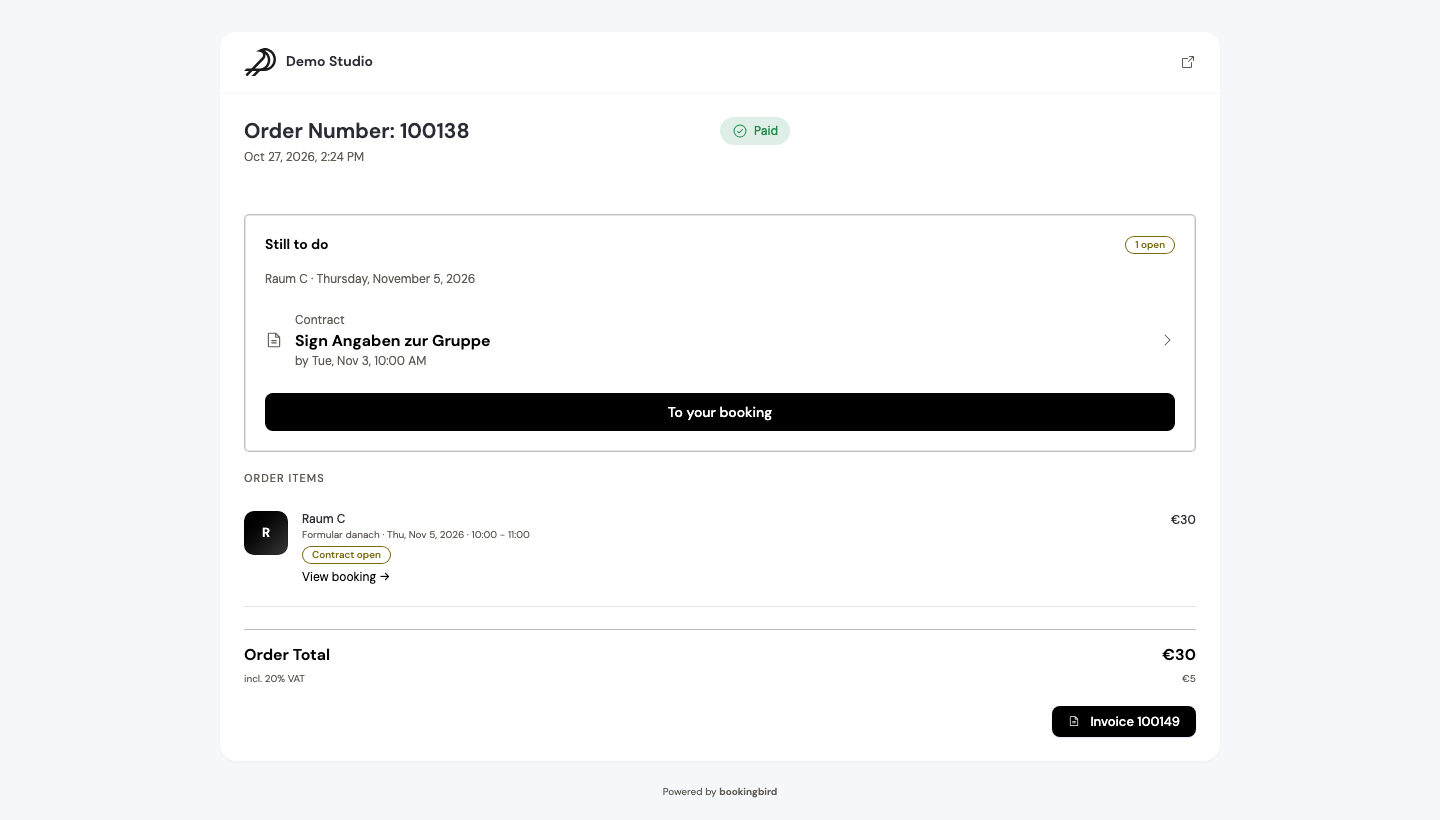
A document for your guests is no longer always called “Contract”: name it “Waiver”, “Consent”, “Form” or use your own word. After purchase, your guests see a “Still to do” box with every open required task on the confirmation and on their order page.
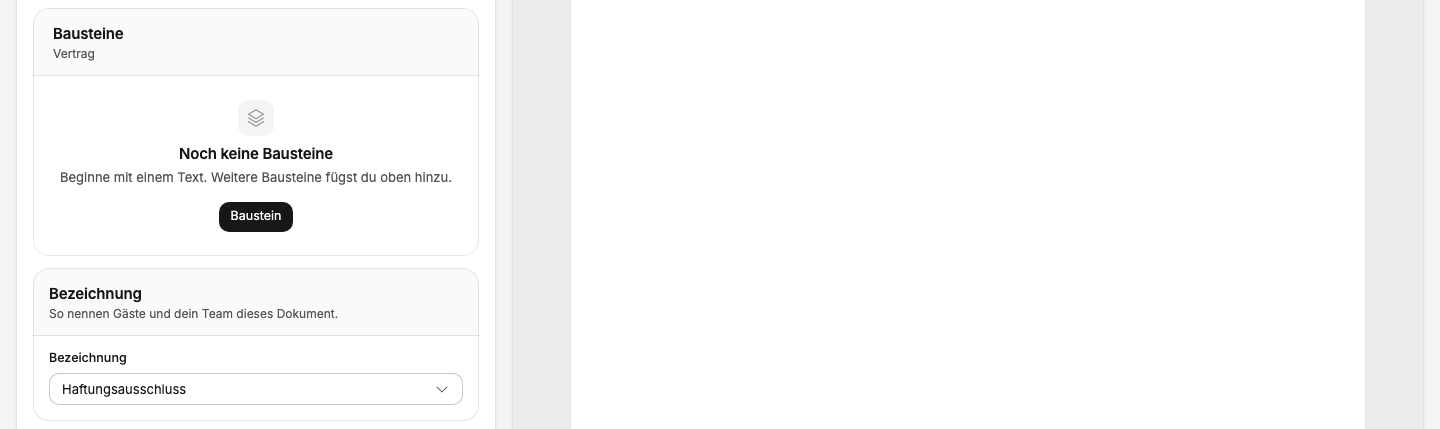
Where to find it: Settings → Booking → Documents → open a document → Label
The new “Event settlement” report shows, per date and ticket category, what was sold, given away and cancelled, with gross, tax, net and refunds – as a CSV for your accounting. An event's analytics now deduct refunds too: a €25 ticket with a €10 refund counts as €15. Money figures are only visible to people allowed to see reports.
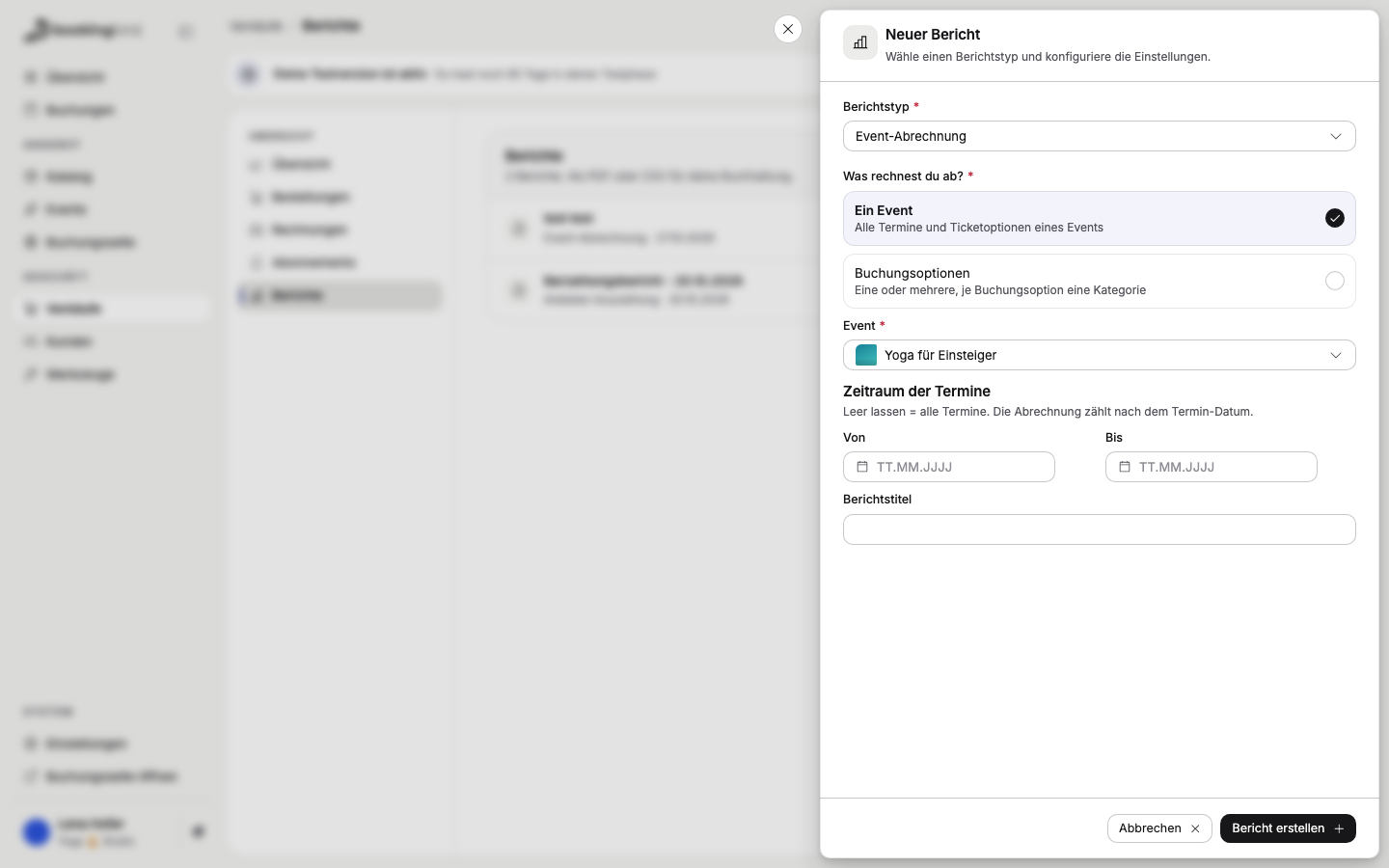
Where to find it: Sales → Reports → Create report → Event settlement · or in the event: Insights → Create settlement
Your invoice numbers can now include the year and start again at 1 every year, such as “RE-2026-0058” and “RE-2027-0001” in the new year. Cancellation invoices and credit notes count in their own range, so your invoice numbers keep running without gaps.
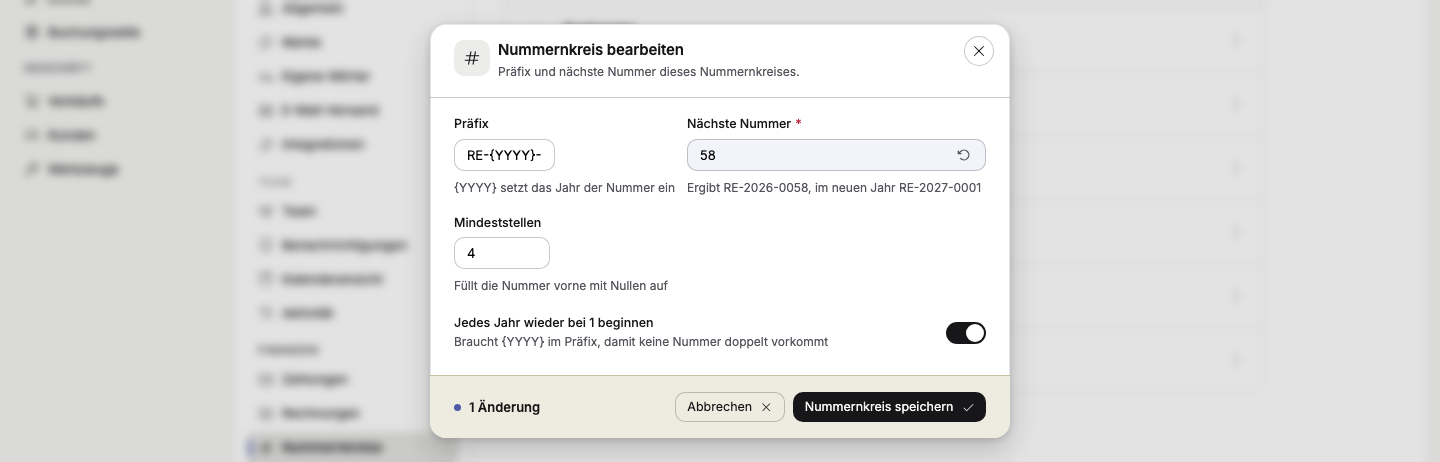
Where to find it: Settings → Project → Finance → Number ranges
Working late, or just prefer it darker? Choose “Light”, “Dark” or “Match device” for your dashboard. The setting applies to the device you choose it on – and everything your guests see stays light.
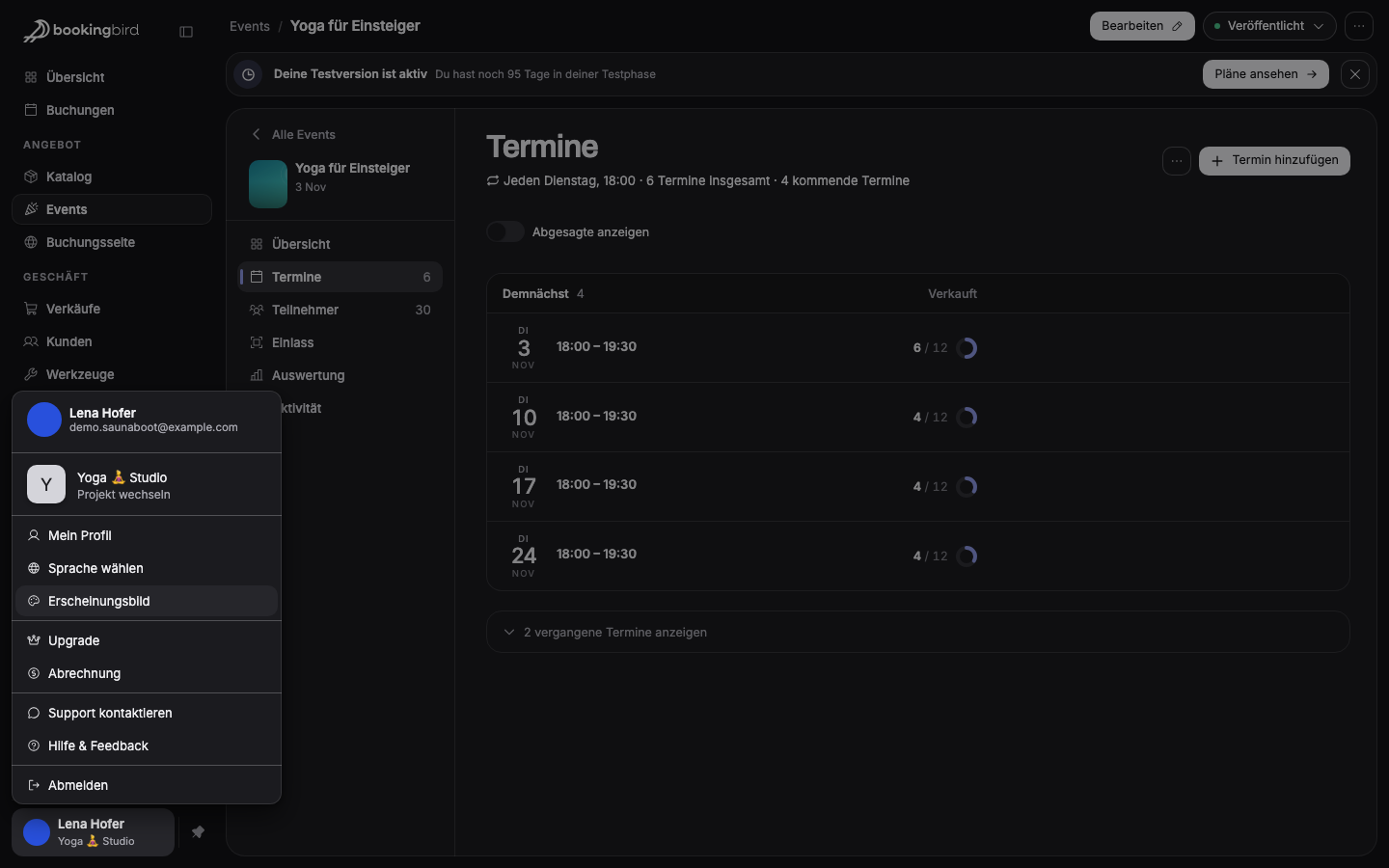
Where to find it: Account menu (bottom left) → Appearance
Payments
Every card payment on an order shows what it cost in fees.
Order confirmation, order and invoice PDF show every line at its list price and take each coupon off exactly once.
When you partly cancel an invoice, the window and the emails name the cancelled amount and what's still open.
When a guest pays an invoice via its link, they see “Paid” straight away – or “Payment processing” for SEPA.
If a signed-in guest already has a ticket for a date, checkout points it out; they can still book.
Coupon › Activity lists every redemption with order, discount and promotion code, and the redemption count is correct everywhere.
A line in your settings shows which tax applies and whether it matches your project's country.
Bookings & calendar
When you change a booking option's flow, the window first shows what it means for upcoming bookings, and every step clearly shows whether it is required or optional. If two people save at once, nothing gets lost.
Every booking shows exactly one status; “Overbooked” and “Contract open” appear as small markers next to it.
You'll find the CSV export in every layout of “Manage Bookings”, including the calendar.
Quick create lets you title a booking right away, “Show next free time” works on your phone too, and the resources ticked in a view are also its columns.
When you block a time that already has bookings, the window lists them. A block applies to every unit of a resource, or fewer if you choose.
In bookings with several units, each unit has its own people and extras, and the price is right.
A 10-visit pass pays one unit per spot, including spots without their own holder, and a cancellation gives the units back.
Availability
The field is now called “Maximum bookings at the same time”, and calendar, time list and booking all read the same rule – times shown as free can really be booked.
Between two bookings the longer of the two buffer times always stays free, also around course dates, and a 0 you set on purpose really means 0.
New resources automatically get a calendar colour that isn't taken yet.
Emails & language
The “New booking” email to you is available on every plan, once per order and only for bookings made on your booking page.
Guests read the booking page, emails and texts in their language if Bookingbird speaks it, otherwise in English; invoices are entirely in your main language.
Sign-in, “Forgot password?” and confirmations reply in your dashboard's language.
“Invite all” sends the invitation with a fixed text, at most 50 a day, and nobody is invited twice within 24 hours.
Booking page
Prices name their unit, such as “from €12 per hour” or “per day”, event cards show the starting price and “+ 3 more dates”, and where nothing is due it says “Free”.
Cart, checkout and order pages appear in your font, colour and button style.
A day with no free times says why, such as “Closed” or “Only members can book on this day”.
The order page for guests without an account is tidied up and only shows the order and documents.
Account & security
You change your sign-in address securely with your password and a confirmation link, and “Forgot password?” is available wherever a password is asked for.
After several wrong sign-in attempts there's a short, growing wait instead of a lockout; the button shows how long.
Names containing a phone number or link are rejected with the reason shown at the field; names like “Season 2025/2026” are fine.
Plan & interface
When you reach a limit of your plan, a window shows where you stand and the plans that lift it, with their actual prices.
Settings are reorganised, the “Organisation” area now carries that name, and every detail page has the same header.
The save bar names missing details and jumps to the field, help texts sit right at the field, and the event editor has the same sidebar as the other editors.
Payments
A double click or two open tabs no longer create a second order, and a cancellation is only refunded once.
A refund now lowers your revenue in the statistics instead of raising it.
The price next to the book button always matches the cart, including tiered discounts.
A reminder goes out only once per stage and never for paid or cancelled invoices.
Subscription renewals use the tax type that applies today.
Wide or tall logos are no longer cut off on invoices and receipts.
When you delete a project, your Bookingbird subscription adjusts and all of the project's data is removed.
Bookings & events
The booking option editor no longer loses changes when saving, and copies keep all prices.
Archived documents no longer block checkout, and an empty document can't be published.
“End sales” and price tiers save reliably, so two tiers never apply at once.
An event with an ongoing, paid date can no longer be archived by accident.
Messages to guests and workflow emails go out exactly once, and an empty condition line no longer blocks a workflow.
If there's no wallet pass for a booking, a clear message appears instead of an error.
Calendar
Opening hours ending at 00:00 last until midnight, cancelled bookings no longer form a grouped tile, and all-day blocks no longer show “00:00”.
If a view limits the values on offer, that now applies to list filters as well.
Booking page
A switched-off booking page no longer accepts orders, not even from an open cart.
The image you choose for the header appears in the preview and on your page.
“Design your page” no longer saves silently: if something is invalid, the save bar takes you to the field.
A website address is no longer silently shortened into your page address; the reason is shown at the field instead.
Legal texts appear neatly formatted, guests no longer see English error messages in the middle of a German page, and sign-up keeps what your guests already typed on a slow connection.
Privacy & security
Guests no longer see other participants' contact details or the internal titles of your bookings and blocked times, and links from emails don't pass their access on to tracking services.
The “Forgot password?” link works only once, a new password signs out your other devices, sign-in codes expire, and Google or Apple sign-in needs a confirmed address.
Stored access credentials, for example for door systems, are kept encrypted.
Web addresses automatically get “https://”, and unsafe links are neither saved nor shown.
A team invitation works no matter how the email address was typed.
Thanks for your feedback – much of this update comes straight from your suggestions. Questions or ideas? Get in touch any time.